

Using GrailVault
Search, tags, favorites and trash
Find items quickly and keep your vault tidy.
#Browse
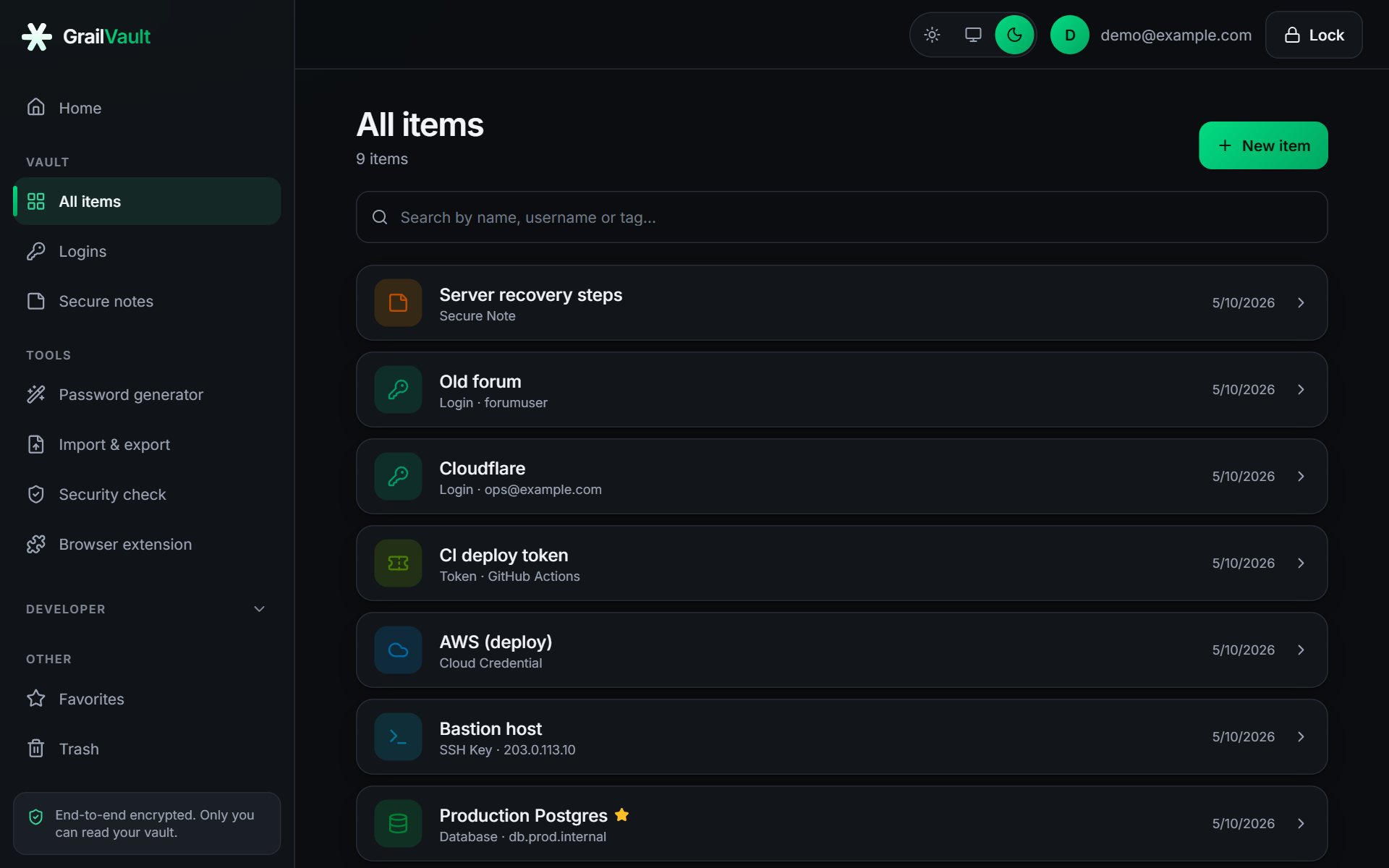
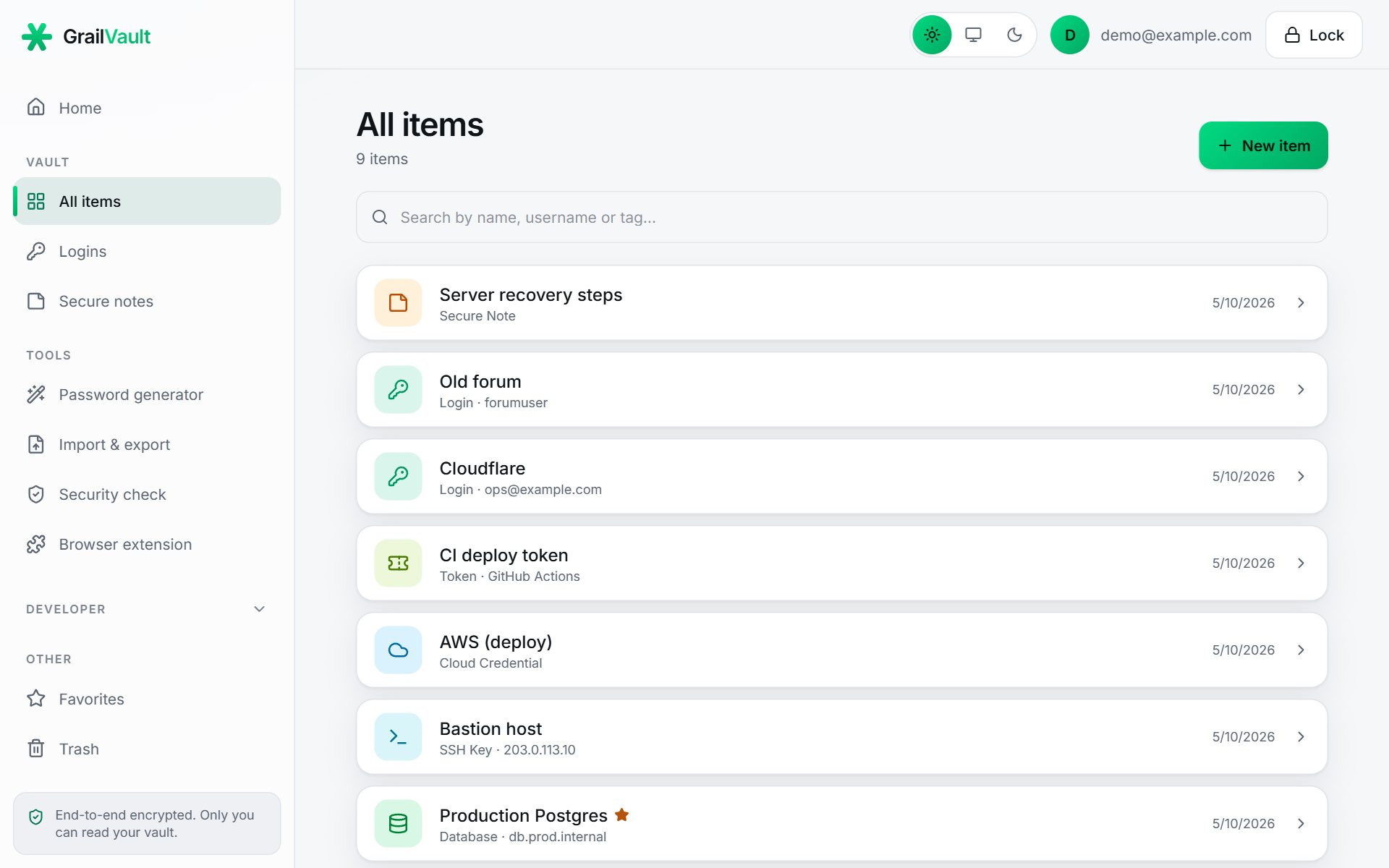
The menu has All items, Logins and Secure notes, with the developer types (API keys, tokens, SSH keys, databases, cloud and custom) in a Developer group that you can open when you need it. On a phone, use the bottom bar to reach Home, Vault, Favorites and Settings.
#Search
Use the search box above the list. It matches an item's name, the main detail shown under the name (such as the username or host), its type, and its tags. Search runs entirely in your browser on data it has already decrypted, so the server never learns what you looked for.
Secret values such as passwords are never searched.
#Tags
Add tags separated by commas when you create or edit an item, for example work, production. Tags are shown on the item and are searchable. When you import from another program, its folders and tags become tags.
#Favorites
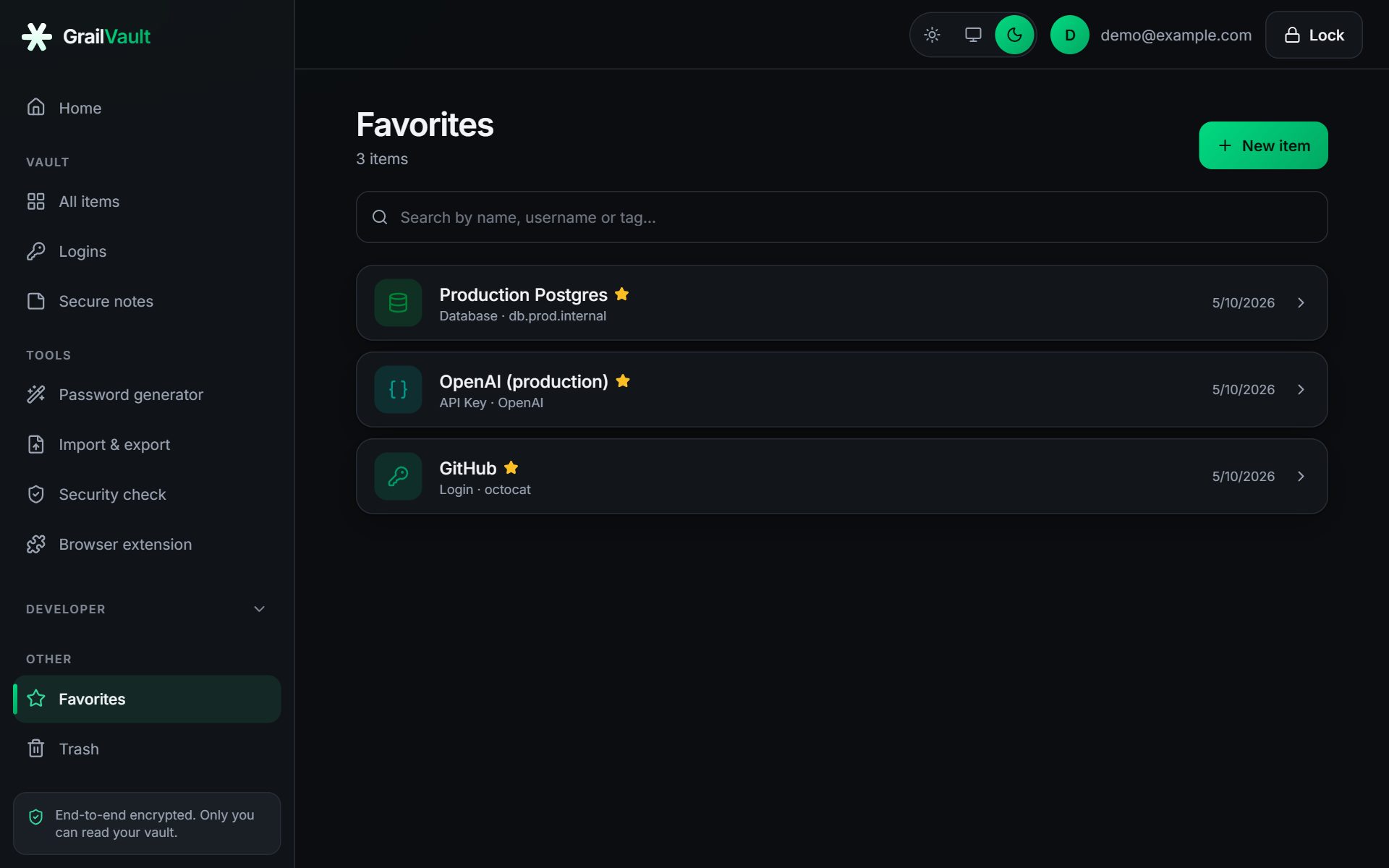
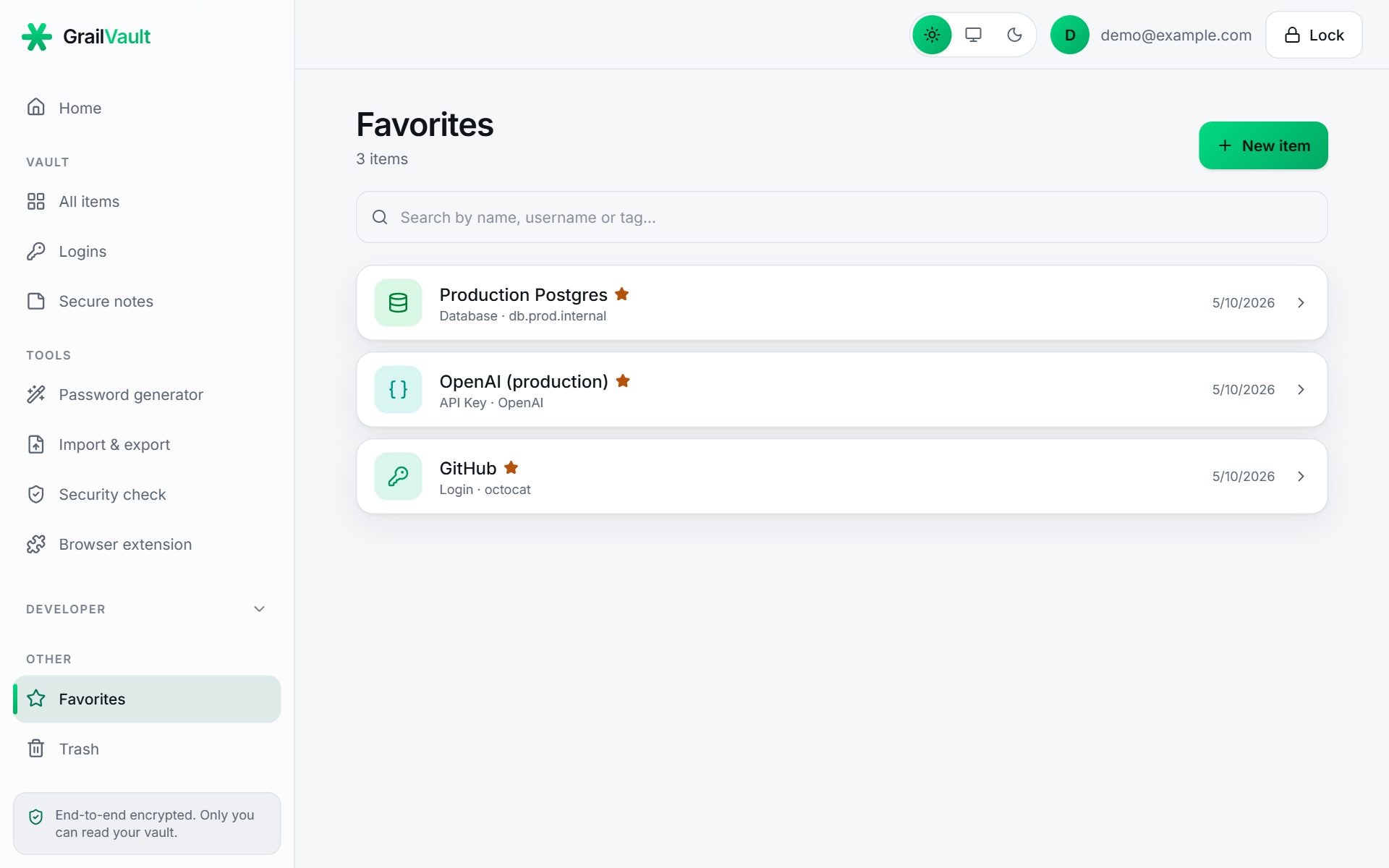
Open an item and choose Favorite (or tick the box while editing) to star it. Favorites appear on the dashboard and in the Favorites view in the menu. Choose Unfavorite to remove the star.
#Trash
Move to Trash does not delete anything straight away. The item moves to Trash, where you can:
- Restore it back to your vault, or
- Delete permanently, then Confirm delete forever. This cannot be undone.
Items stay in the Trash until you delete them yourself; they are not removed automatically. Trashed items are included in your encrypted backups.
#Editing
Open an item and choose Edit. Changes are re-encrypted and saved when you choose Save. If the same item was changed somewhere else at the same time, GrailVault reloads the latest version instead of overwriting it.
Changes made elsewhere, such as a login saved by the browser extension, appear when you return to the tab, or within a minute.