

Browser extension
Fill and save logins
How to fill a login with one click, save new logins as you sign in, and update a changed password.
#Fill a login
The extension never fills anything by itself. You choose when.
- Click into a username or password box on a sign-in page. A small green GrailVault key appears at the right edge of the box.
- Click the key. A list shows the logins saved for this website.
- Choose one. GrailVault fills in the username and password.
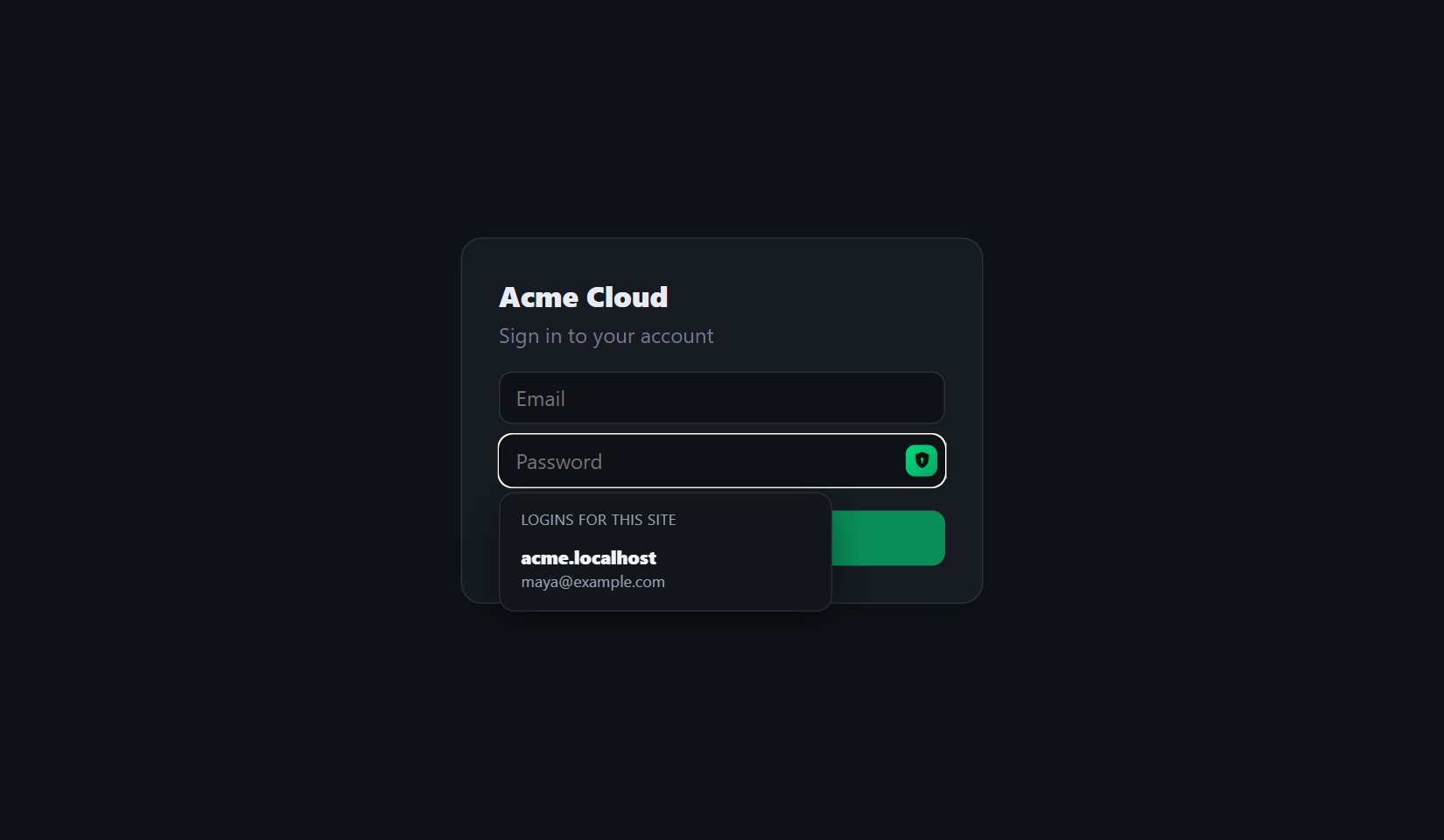
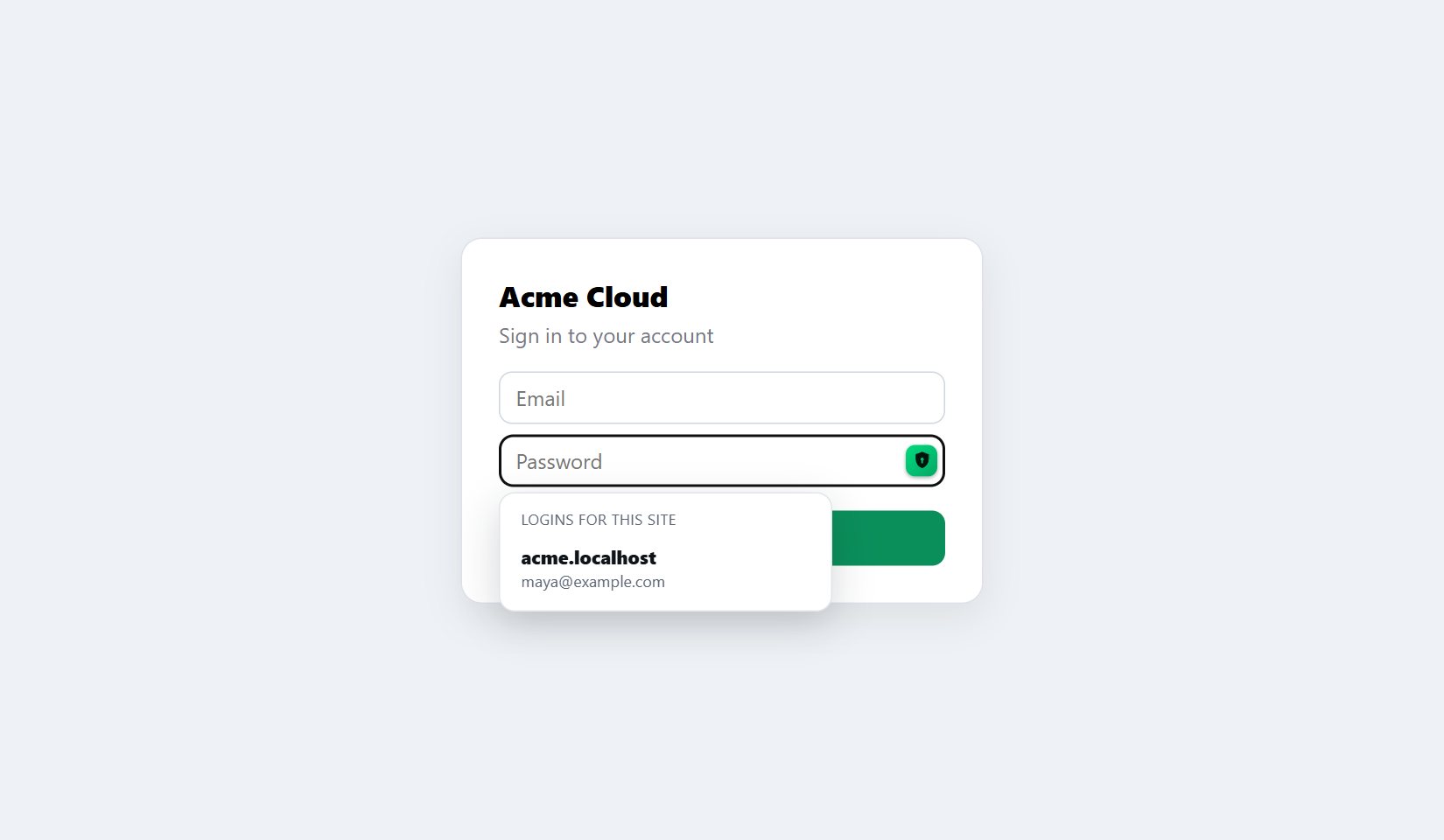
The list shows only logins saved for the site you are on (and its subdomains, so login.example.com can use a login saved for example.com). If there is none you see "No saved login for this site yet".
#From the toolbar
Click the GrailVault icon. Logins for the current site are listed under This site with a Fill button. Every login also has User and Pass buttons that copy the username or the password to your clipboard. Use Search to find any login.
Note
Copying leaves the value on your clipboard until you copy something else. The web app clears it after 30 seconds, but the toolbar popup closes too soon to do that, so prefer Fill where you can.
#Save a new login
Sign in or sign up on a website as usual. When the sign-in works, GrailVault offers to save it.
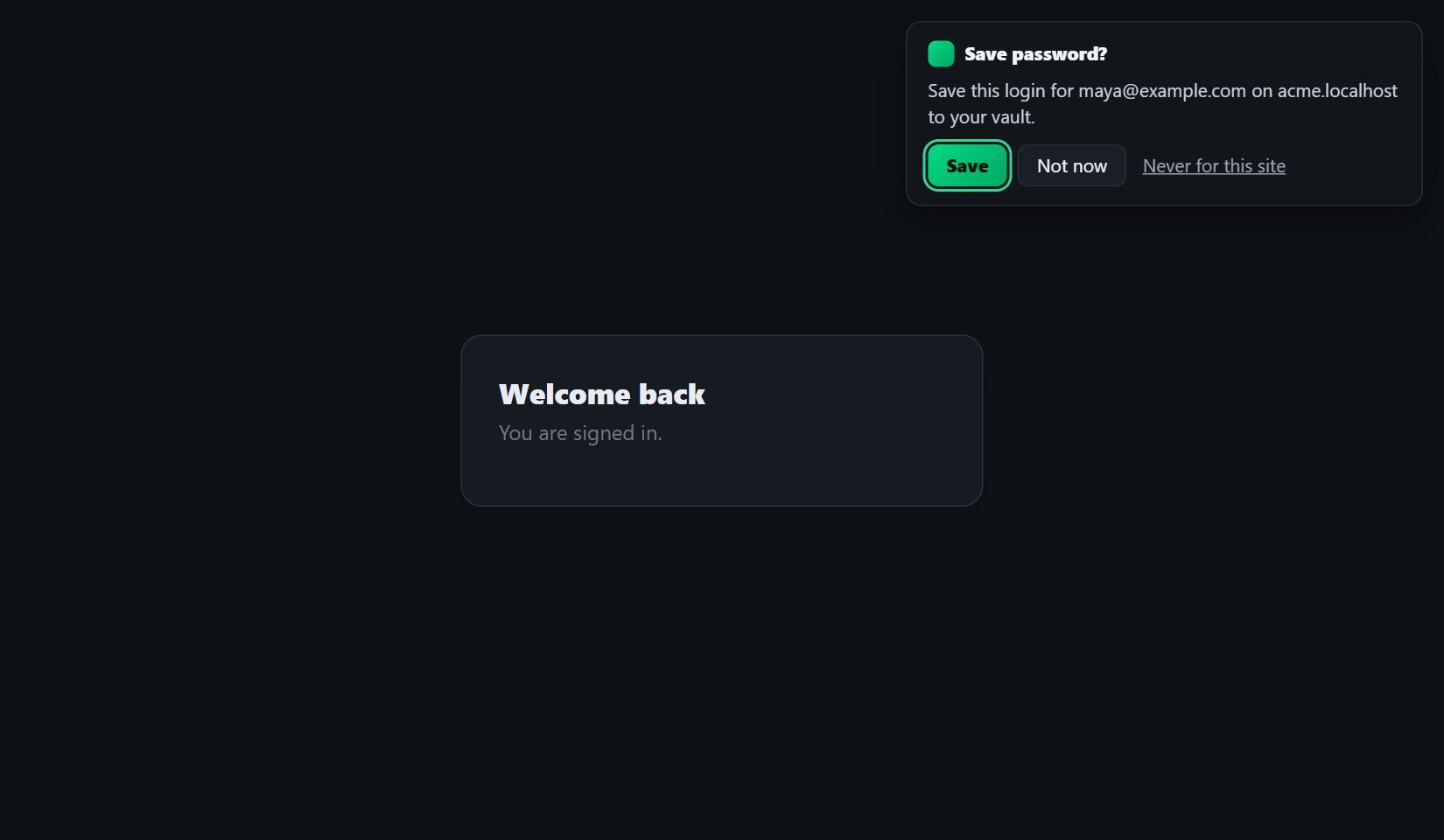
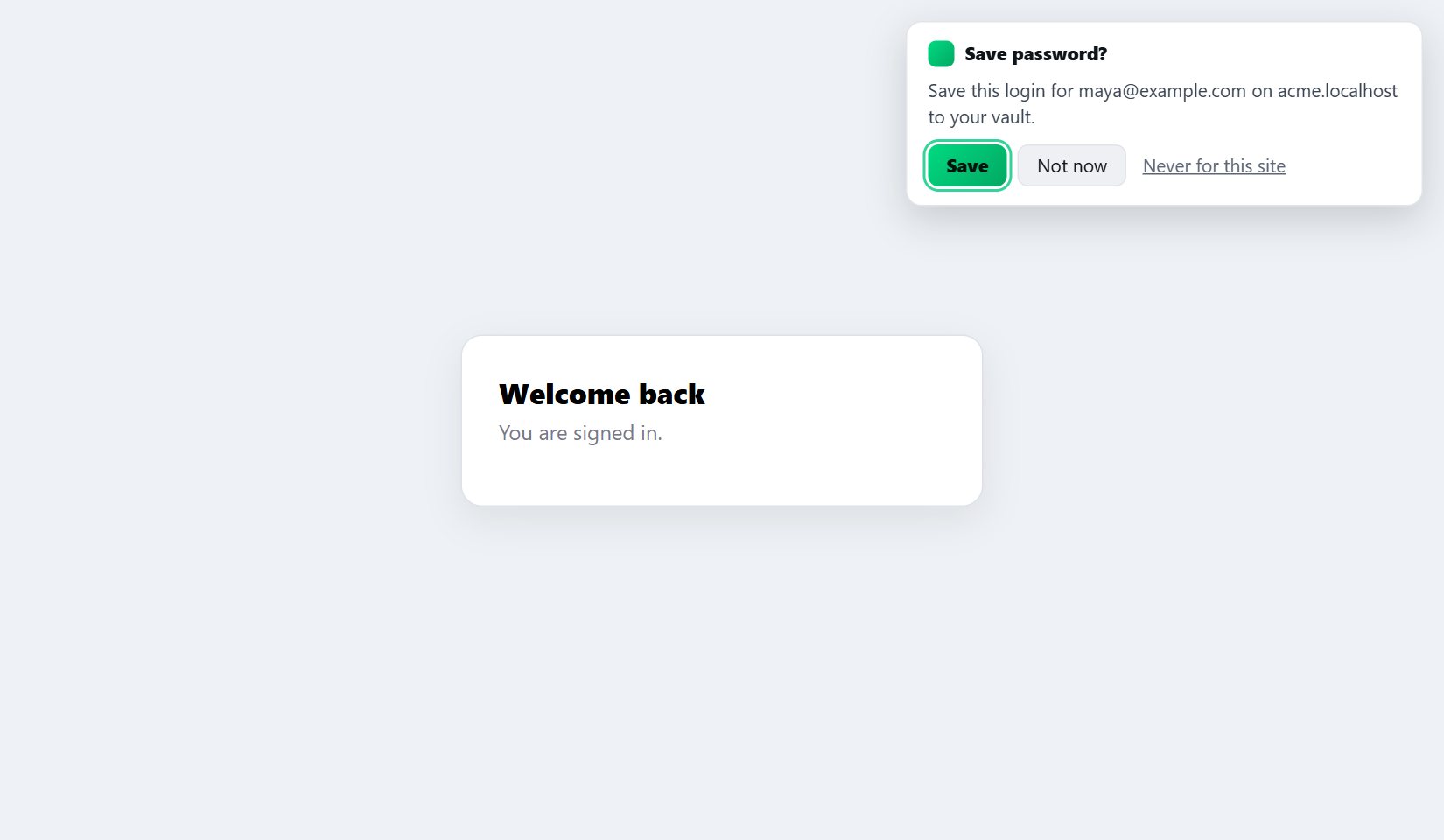
- Save encrypts the login and adds it to your vault. The name is the website's address, which you can change later in GrailVault.
- Not now closes the prompt and saves nothing.
- Never for this site stops GrailVault offering to save on that site. The extension remembers the site's address only. To undo it, open the toolbar popup and choose Turn back on under the list.
The prompt appears after the page changes, or after the sign-in form disappears on pages that do not reload. If the sign-in fails and the form is still there, no prompt appears, so wrong passwords are not offered for saving.
#Update a changed password
If you sign in with a different password for a username you already saved, or change your password on a site, the prompt says Update password? and replaces the saved password when you choose Update. Nothing else about the login changes. If the password is already saved exactly as typed, you are not asked.
#Strong passwords on sign-up pages
On a sign-up or change-password form, the key menu offers Suggest a strong password. It creates a random password and fills it into every password box of the form. When you submit the form, GrailVault offers to save it.
#Which logins and pages it works with
- It works with Login items. Other item types are not filled into web pages.
- It fills only on secure pages (addresses starting with
https). On a page without https the menu explains why nothing is filled. - It works in the page you are looking at, not inside embedded frames (some payment and single sign-on forms are frames).
- It does not run on GrailVault's own pages, so your master password is never offered for saving or filling.
#Your changes show up everywhere
A login saved by the extension is encrypted in the extension, then appears in the GrailVault website when you return to its tab (or within a minute), and on your other devices the next time they refresh.
Warning
If your free trial has ended and you have not chosen a plan, your vault is read-only and the extension cannot save new logins. It says so in the prompt. See Plan and billing.