

Browser extension
Install the browser extension
Add GrailVault to Chrome, Edge or Firefox and sign in, so your logins can be filled and saved as you browse.
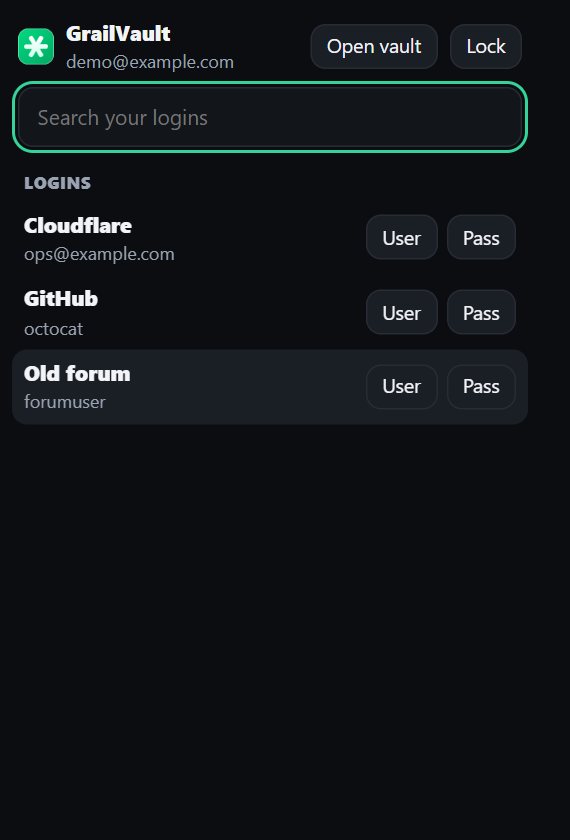
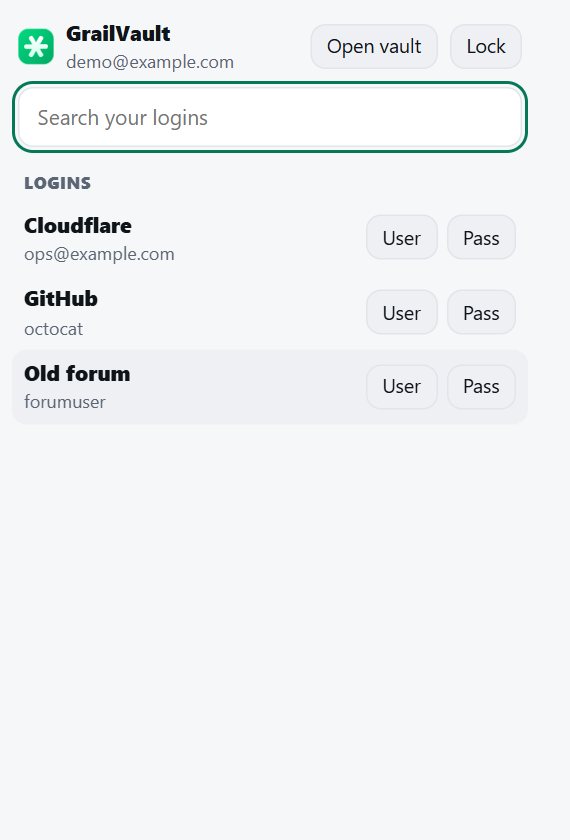
The GrailVault browser extension fills your logins in one click and offers to save new ones as you sign in. It works in desktop browsers.
#Install it
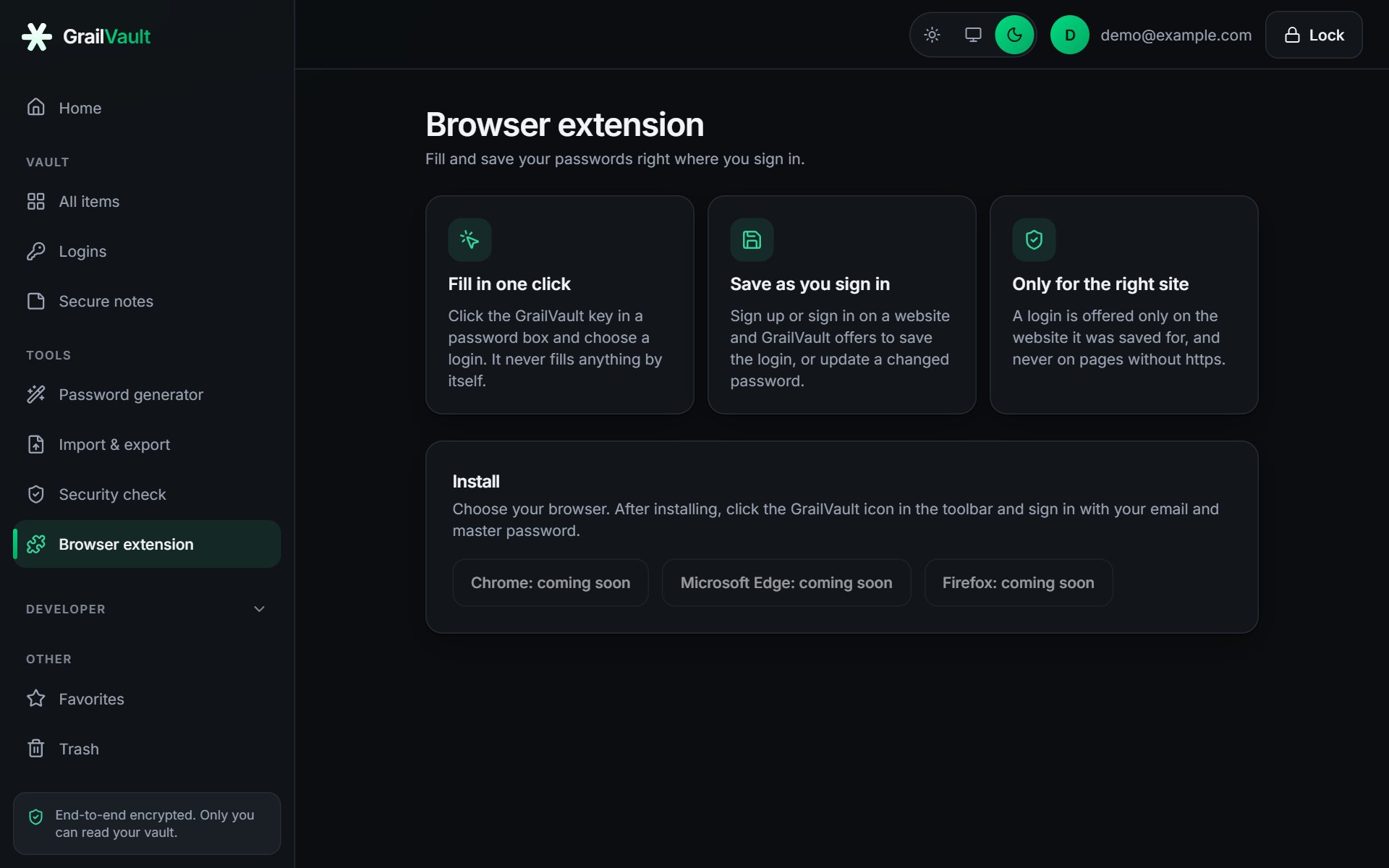
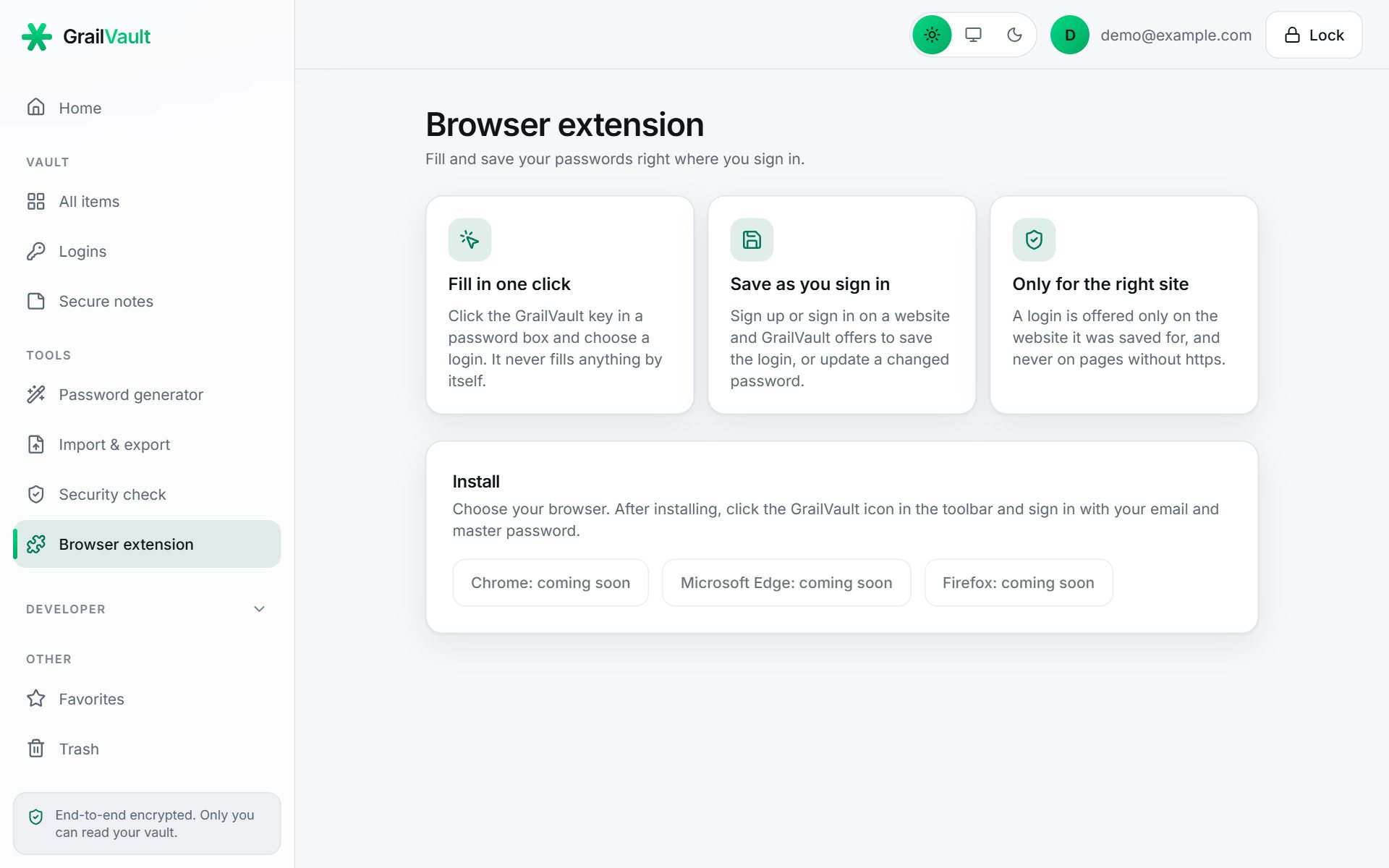
- Open Browser extension in the GrailVault menu.
- Choose Add to Chrome, Add to Microsoft Edge or Add to Firefox, which opens your browser's own add-on store.
- Confirm the install. When the browser asks which websites the extension may use, that is how it can fill passwords on the sites you visit; see Safety and privacy.
- Pin the GrailVault icon to your toolbar so it is easy to reach.
Note
If a store button on that page says coming soon, the extension has not been published to that store yet.
#Sign in
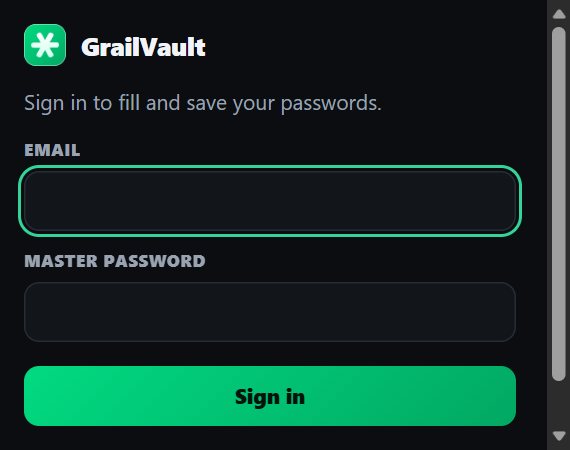
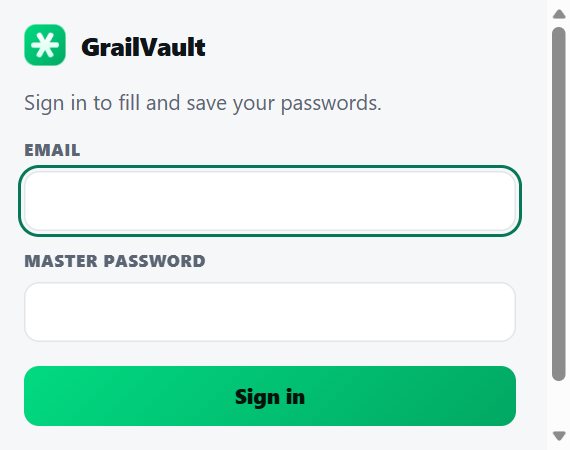
- Click the GrailVault icon in the toolbar.
- Enter your email and master password. If you use two-factor sign-in, you are asked for your authenticator code (or a backup code) next.
- The popup now lists your logins.
Unlocking takes a couple of seconds, because your master password is turned into keys on your own computer, exactly as on the website.
#How long you stay signed in
You stay signed in, with no idle timer, until one of these happens:
- you choose Lock in the popup,
- you close the browser (the extension keeps its keys in memory only, so they are gone when the browser closes),
- you sign the extension out from another device, under Settings, Where you're signed in, or
- seven days pass.
After any of these you sign in again with your master password. Nothing is lost.
#Where it appears
The extension shows up in Settings, Where you're signed in as, for example, Chrome extension on Windows, so you can see it and sign it out like any other device. Each sign-in is also listed under Recent activity as "Signed in with the browser extension".
#Browsers
| Browser | Status |
|---|---|
| Microsoft Edge | Tested. |
| Google Chrome and other Chromium browsers (Brave, Opera) | Built from the same code as Edge. |
| Firefox | A Firefox build exists but has not been tested yet. In Firefox you may need to allow the extension to access websites in its permissions. |
| Safari | Not available yet. |
| Phones | Not available. Phone browsers do not run the extension. |
By default browsers switch extensions off in private (incognito) windows. To use GrailVault there, allow it in the browser's extension settings.