

Security and account
Device unlock
Unlock GrailVault with Windows Hello, your phone's fingerprint, face or screen lock, or Touch ID and Face ID instead of typing your master password.
Device unlock lets you open your vault with your device's own lock instead of typing a long master password.
| On this device | You see |
|---|---|
| Windows PC | Windows Hello (face, fingerprint or PIN) |
| Android phone | Phone unlock (fingerprint, face or screen lock) |
| iPhone or iPad | Face ID / Touch ID |
| Mac | Touch ID |
Your master password keeps working, and so does your recovery key. Device unlock is an extra, convenient way in.
#Set it up
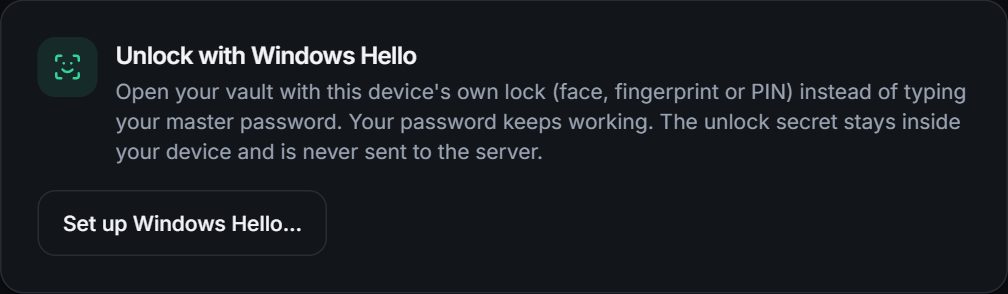
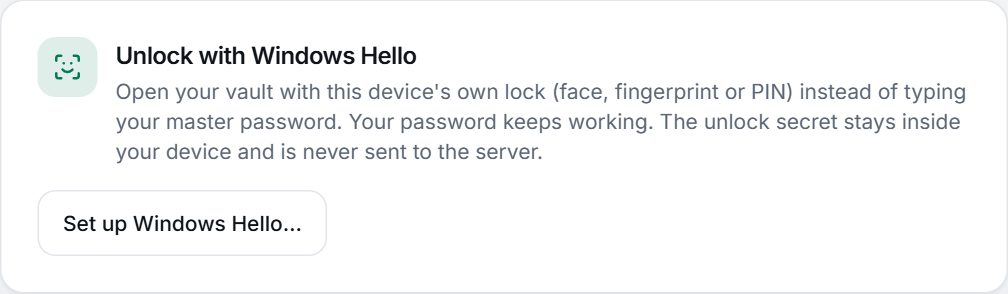
- Sign in and open Settings. Find the section named after your device, for example Unlock with Windows Hello.
- Choose Set up Windows Hello (or the matching button for your device).
- Optionally give it a name, enter your master password, and choose Turn on.
- Your device asks you to verify twice: once to create the credential and once to link it to your vault.
#Sign in with it
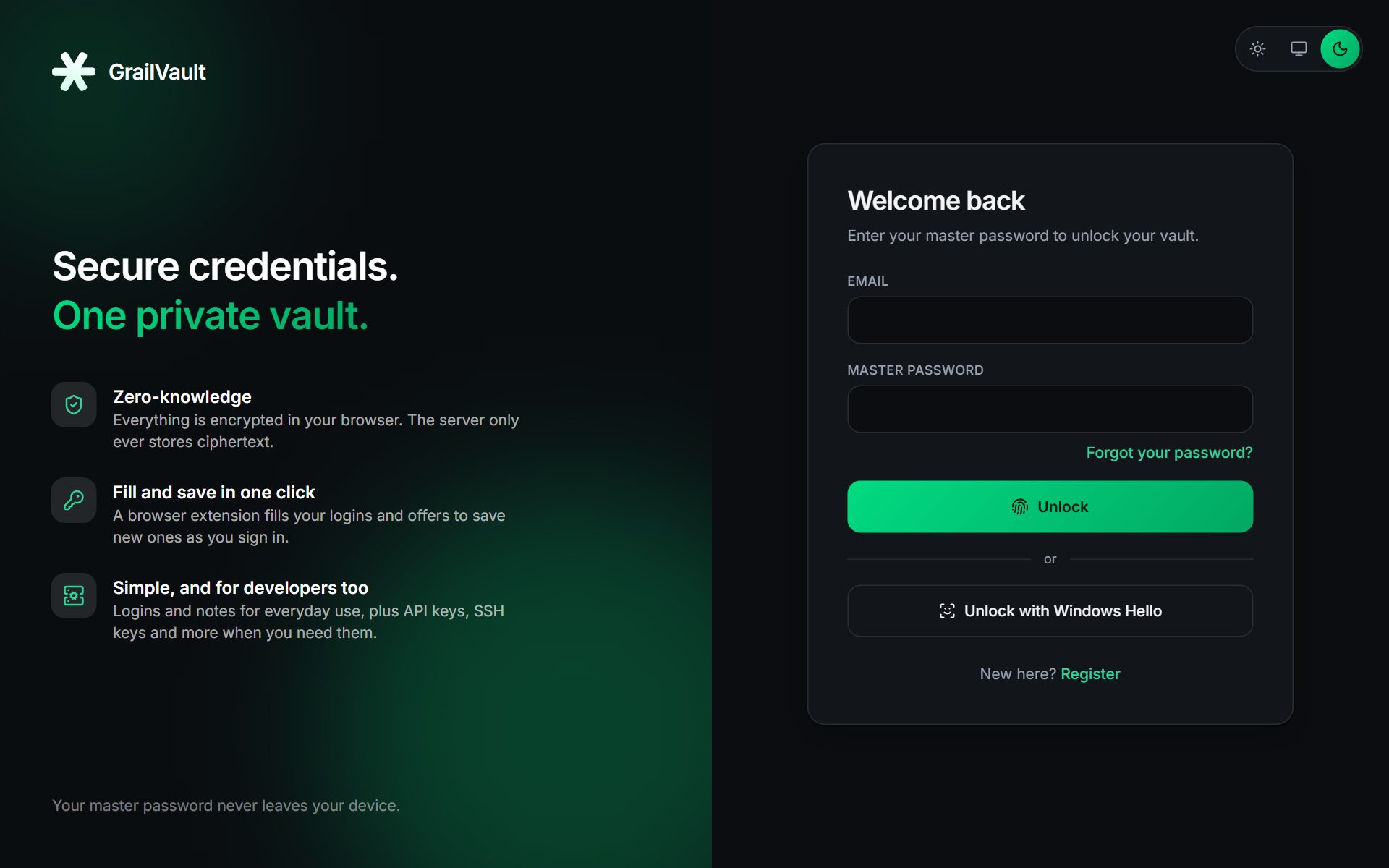
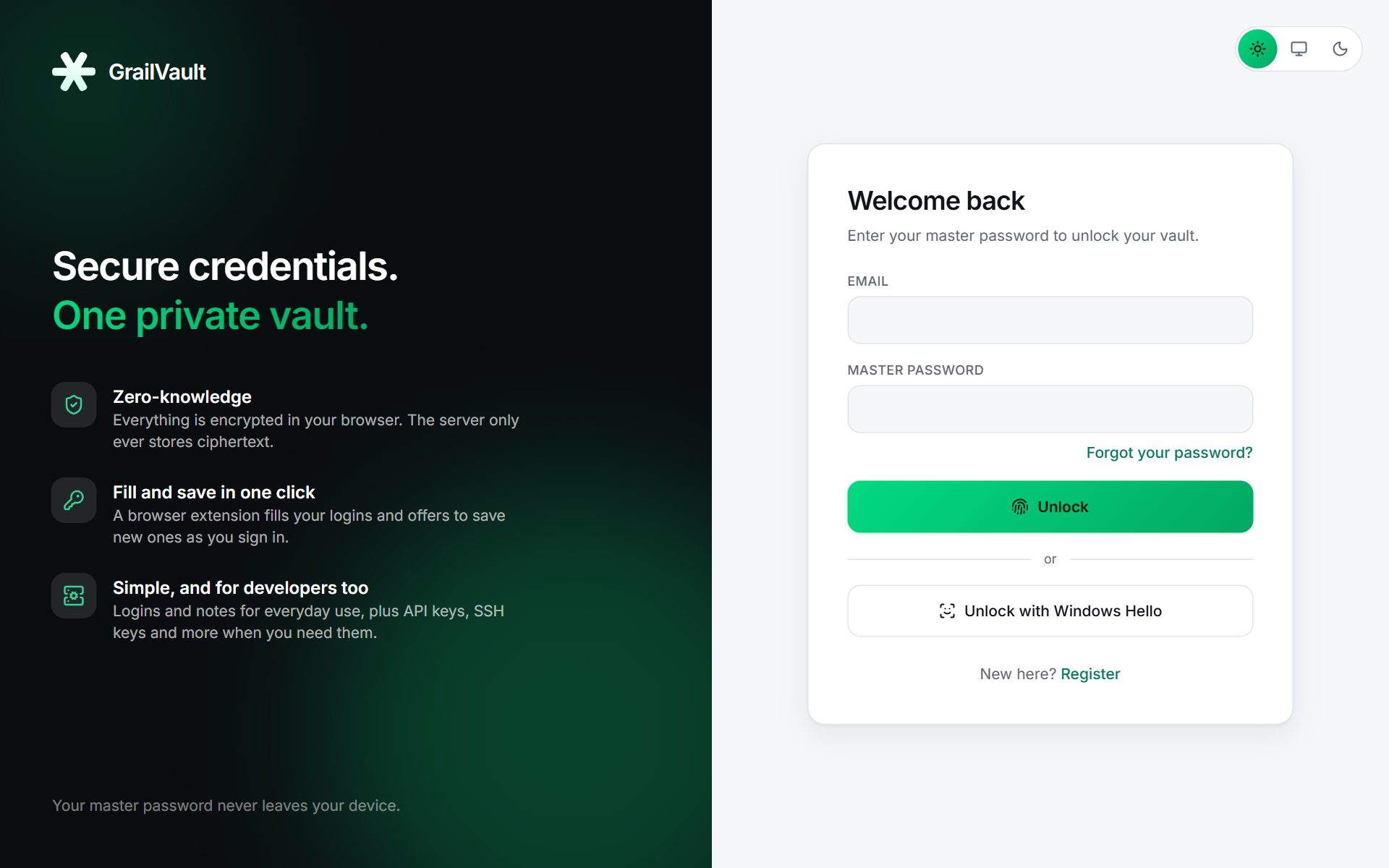
On the sign-in page choose Unlock with Windows Hello (or Unlock with your phone's lock, Unlock with Face ID / Touch ID). Your device asks you to verify, and the vault opens. You do not type an email or a password.
#How it stays private
Your device holds a secret that never leaves it. Your browser uses that secret to protect a copy of your vault key. The server only stores that protected copy and a public key, so the server cannot unlock your vault, and the secret is never sent over the network.
Unlocking always requires your fingerprint, face or PIN, so it already counts as two factors. That is why it does not ask for a two-factor code.
#Requirements
- GrailVault must be opened over HTTPS, which the hosted service always is.
- Your device needs a screen lock or biometric set up, and a recent browser.
- Not every device can use it. Unlocking a vault needs a feature called PRF. If your device can verify you but not provide it, GrailVault tells you so and removes the half-finished setup; keep using your master password there.
#Manage devices
Each device you set up appears in Settings with its name, when it was added and when it was last used. Choose Remove (and enter your master password) to take one away, for example if the device is lost. Removing a device means it can no longer unlock your vault.
Note
Device unlock is tied to GrailVault's web address. If the address ever changes, device unlock stops working and you sign in with your password, then set it up again.