

Security and account
Two-factor authentication
Add a code from an authenticator app to your sign-in, and what to do if you lose your phone.
Two-factor authentication (2FA) adds a second step when you sign in with your password: a 6-digit code from an authenticator app on your phone. Someone who learns your master password still cannot sign in without it.
It works with any standard authenticator app, such as Google Authenticator, Microsoft Authenticator, Authy or 1Password.
#Turn it on
- Open Settings, Two-factor authentication and choose Set up two-factor authentication.
- Enter your master password.
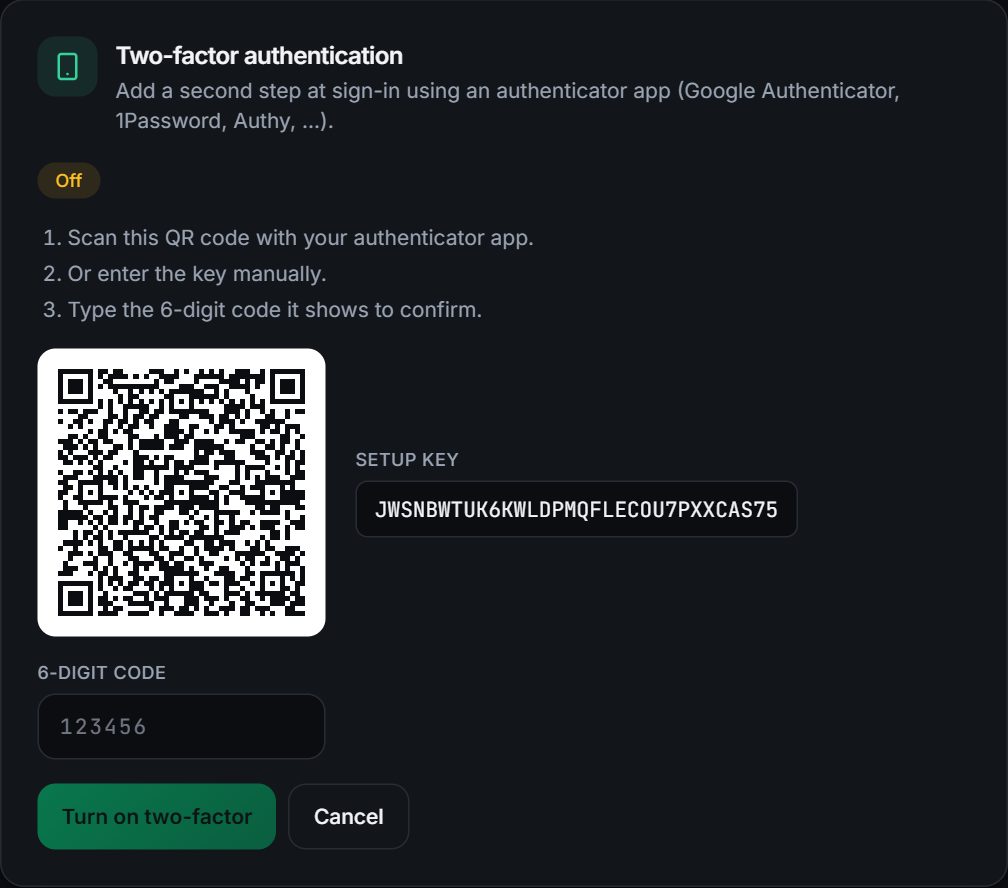
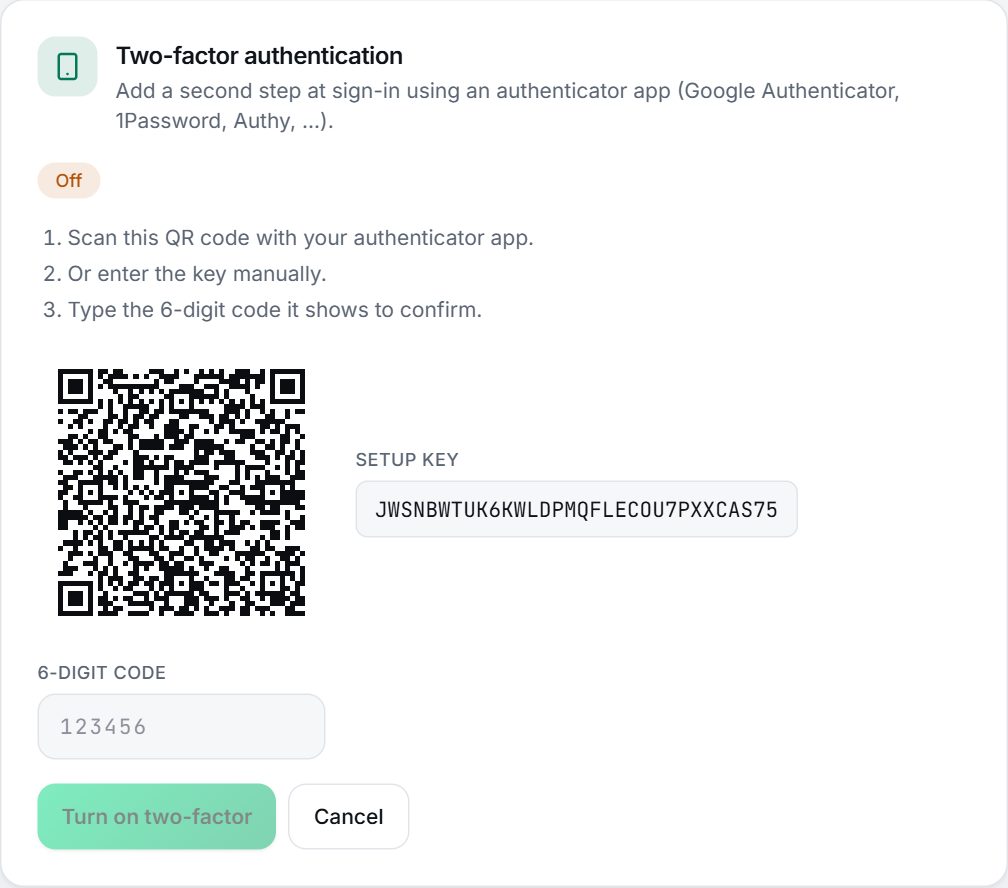
- In your authenticator app, scan the QR code, or type in the setup key shown under it.
- Type the 6-digit code the app shows and choose Turn on two-factor.
#Save your backup codes
When 2FA turns on you get 8 backup codes, shown once. Each works a single time if you lose your phone.
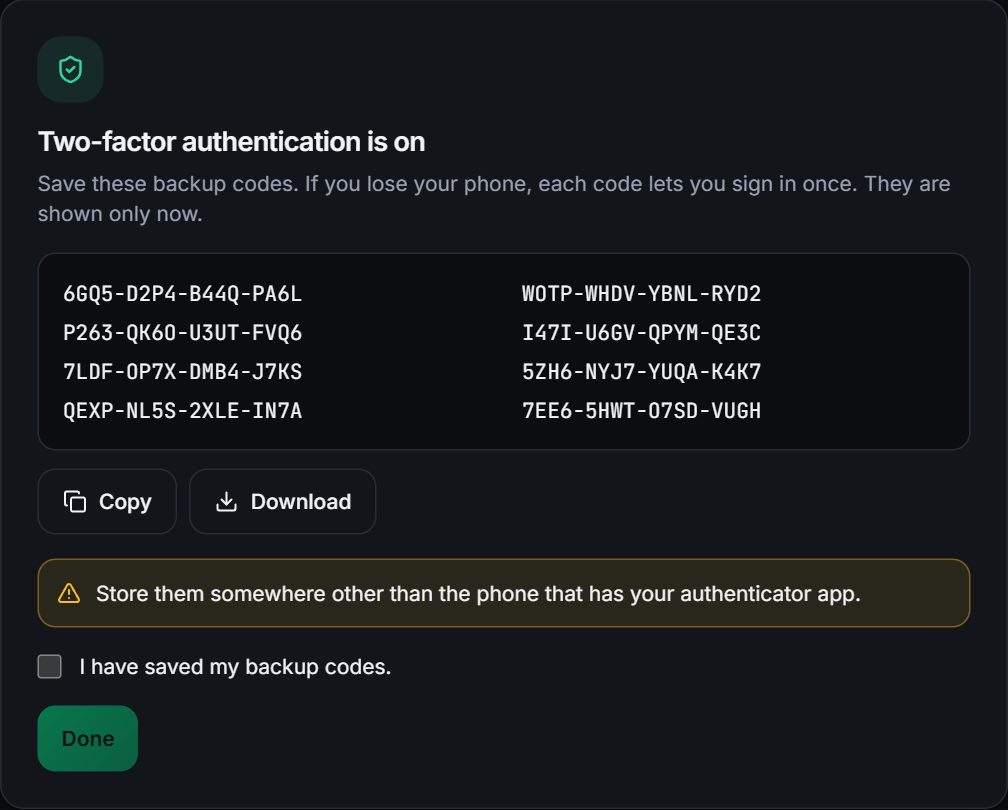
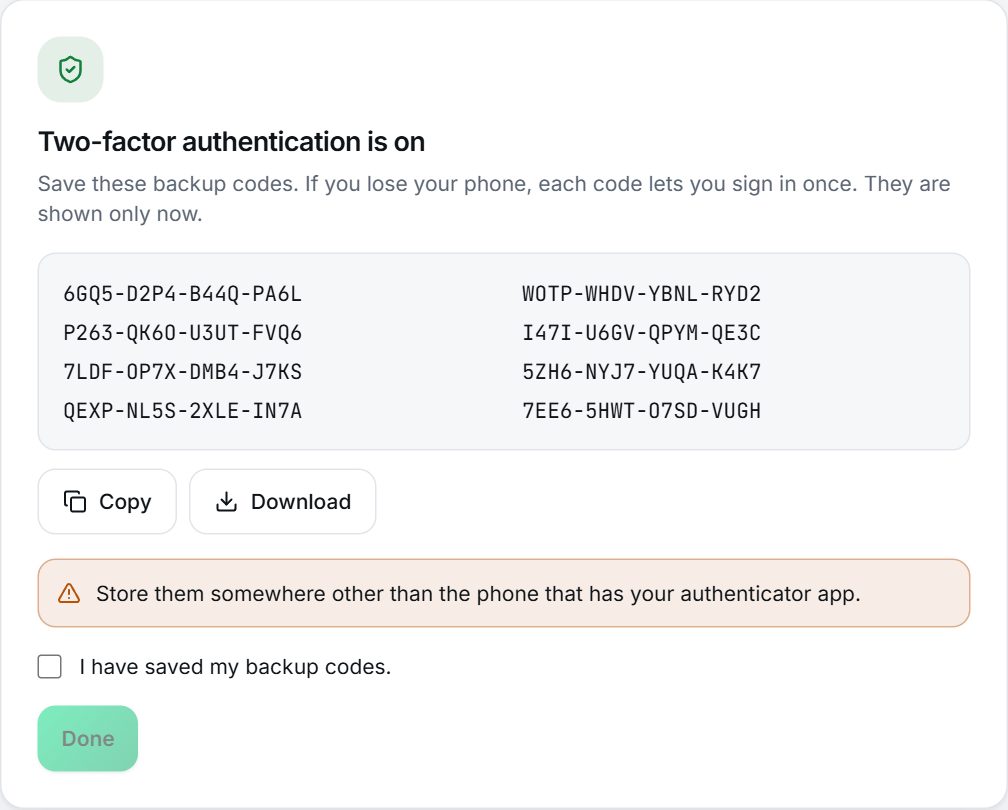
Copy or download them, store them somewhere other than the phone with your authenticator app, and tick the box to confirm. Turning on 2FA also signs out every other device.
#Signing in with 2FA
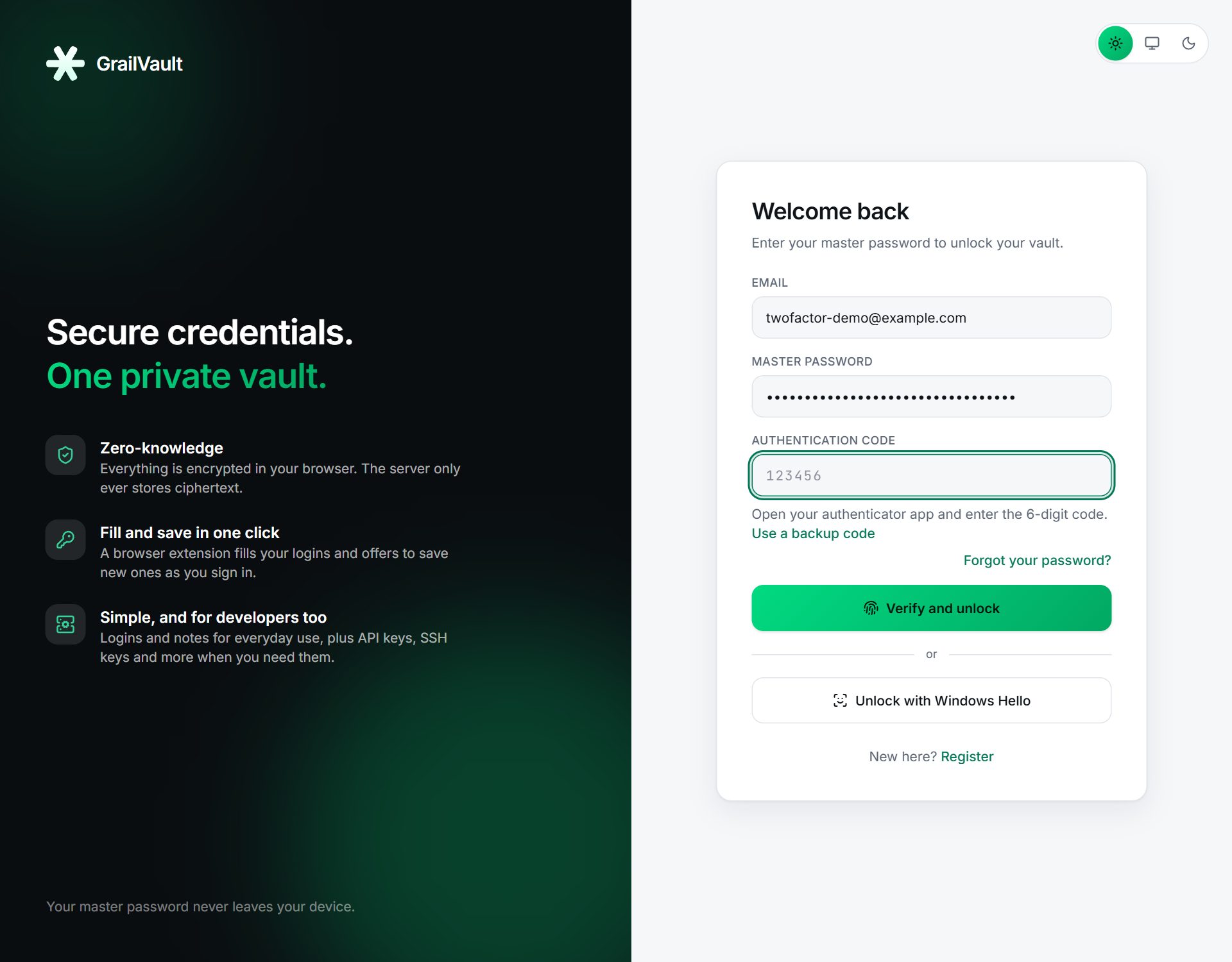
Enter your email and master password. GrailVault then asks for your authentication code. Choose Use a backup code if you do not have your phone.
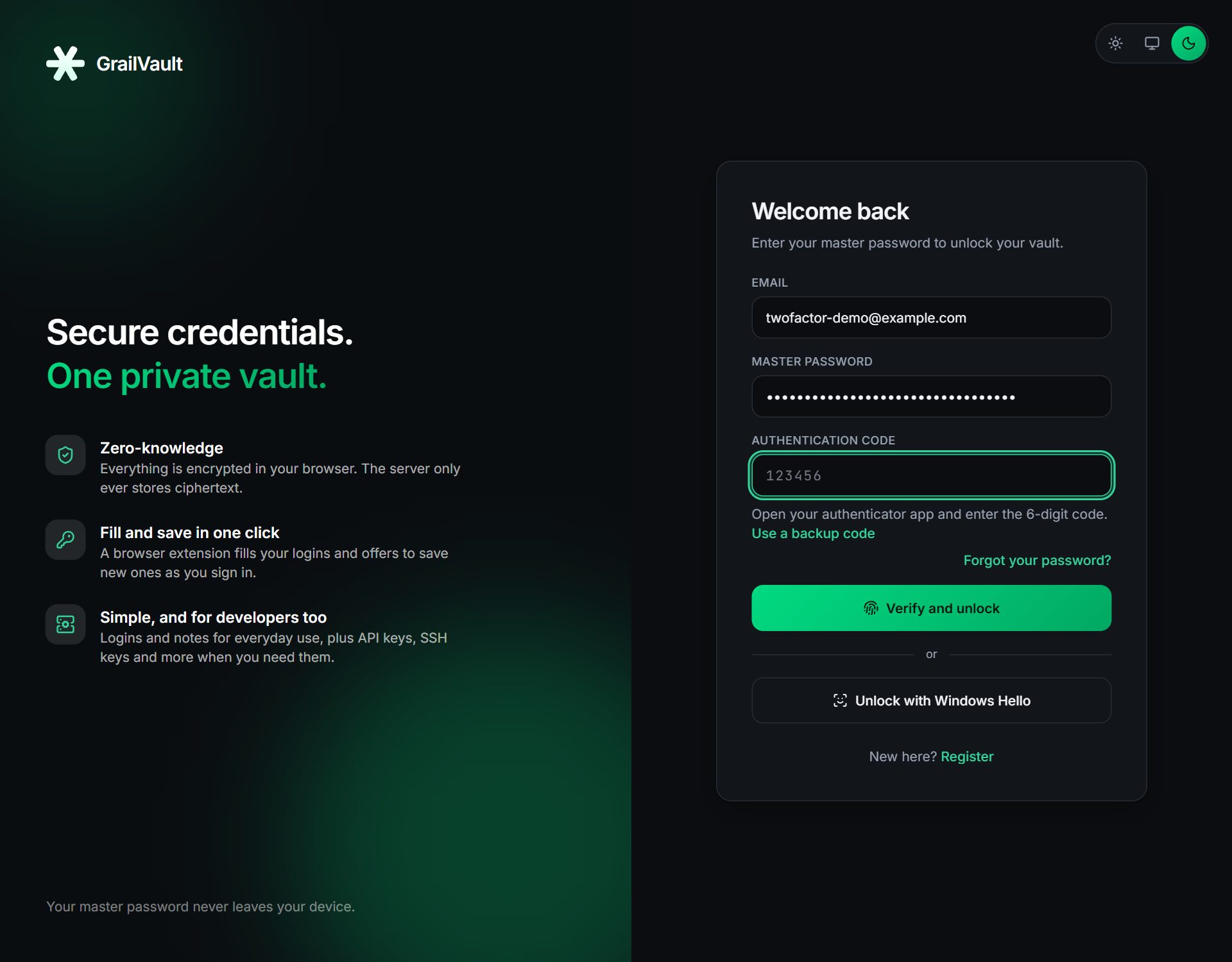
- Each code can be used once. If a code is rejected right after you used it, wait for the app to show the next one.
- Wrong codes count toward the sign-in lockout (5 failures lock the account for 15 minutes).
Note
Signing in with device unlock (Windows Hello, phone lock, Touch ID or Face ID) does not ask for a code. It already requires your fingerprint, face or PIN on the device, which serves as the second factor.
#Manage 2FA
In Settings, Two-factor authentication (it shows how many backup codes are left):
- New backup codes replaces all backup codes; the old ones stop working.
- Turn off disables 2FA.
Both ask for your master password and a current code or a backup code.
#If you lose your phone
- Sign in with a backup code, then set up 2FA again on your new phone.
- If you have no backup codes either, use Forgot your password? with your recovery key and tick I also lost my authenticator app and backup codes.
If you have none of these, the account cannot be recovered.
#What 2FA does and does not do
It protects signing in. It cannot protect your data against someone who already has a copy of the encrypted vault and your master password, because your vault is encrypted by the password alone. Use a strong master password as well.