

Getting started
Quick start
Create your account, bring in your passwords and install the browser extension in about five minutes.
You can be up and running in about five minutes. Everything below is included in the 14-day free trial.
#1. Create your account
Open GrailVault and choose Register. Pick your email and a long master password, then save the recovery key you are shown. Create your account explains each step.
Warning
Your master password cannot be recovered, by anyone. The recovery key is the only way back in if you forget it. Save it before you continue.
#2. Bring in the passwords you already have
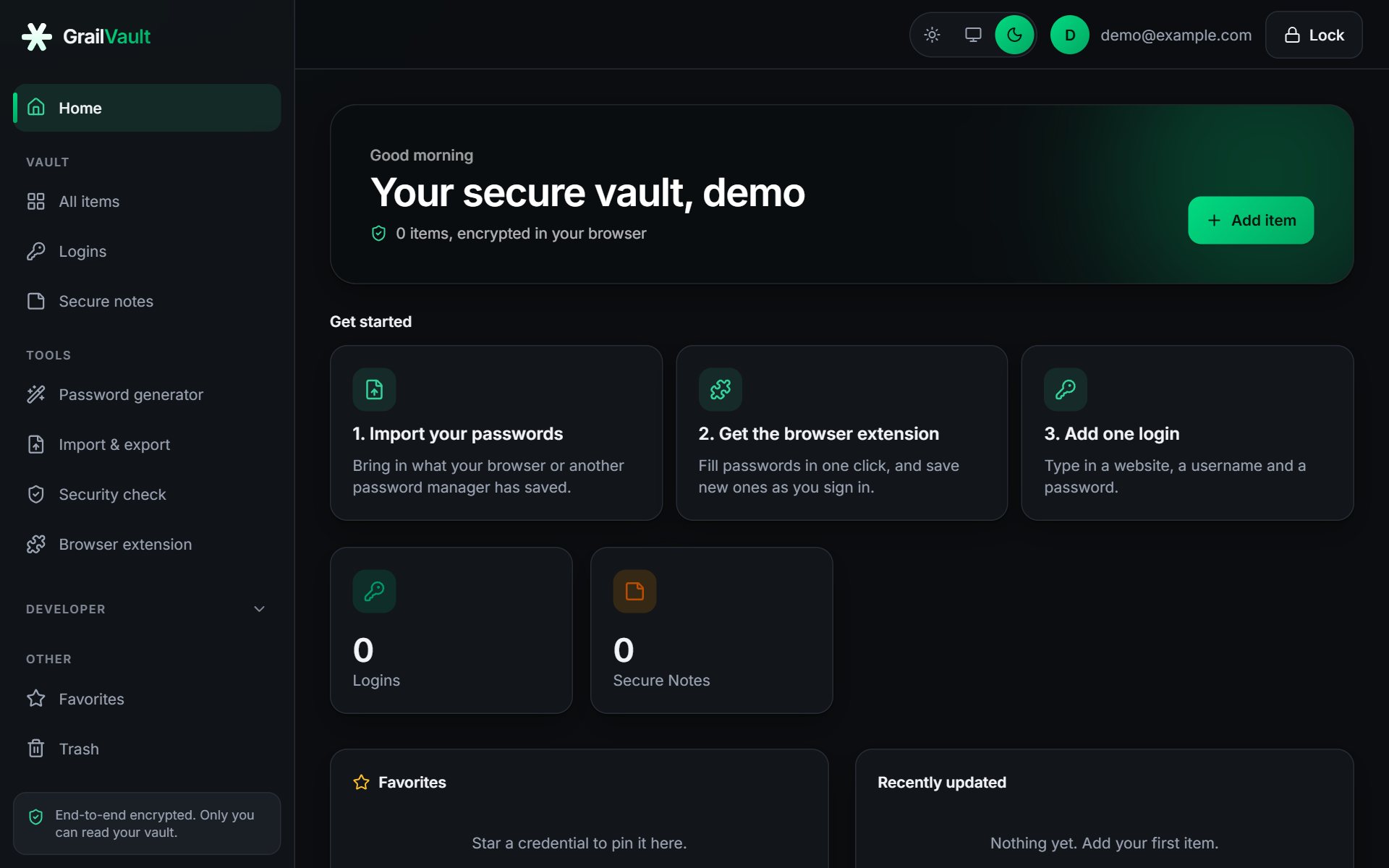
On the dashboard choose Import your passwords. Pick where they are now (Chrome, Edge, Firefox, Safari, Bitwarden, 1Password or LastPass), export a file from there, and choose it in GrailVault. You see a preview before anything is saved. See Import passwords.
#3. Install the browser extension
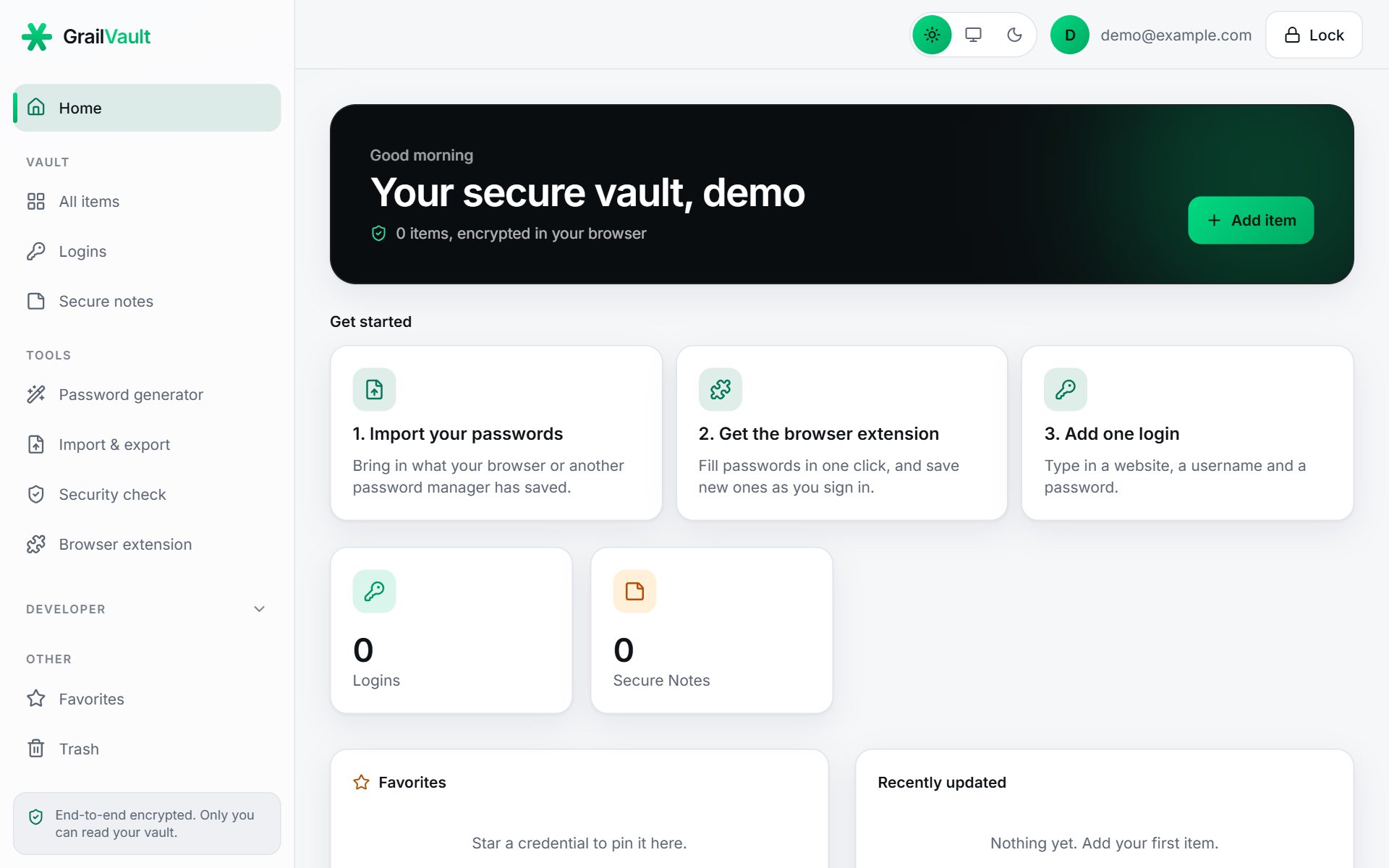
Choose Get the browser extension on the dashboard (or Browser extension in the menu) and add it to your browser. Click the GrailVault icon in the toolbar and sign in with your email and master password. See Install the browser extension.
From now on:
- click the GrailVault key in a password box to fill a login, and
- when you sign in or sign up on a website, GrailVault offers to save it.
#4. Or just add one login by hand
Choose Add one login, type a website, username and password, and save. See Add your first login.
#After the first minutes
- Run the Security check to find weak, reused and leaked passwords.
- Turn on two-factor sign-in and device unlock.
- Make an encrypted backup of your vault.