

Using GrailVault
Import passwords
Bring in the logins saved in your browser or another password manager, and export a copy when you need one.
Switching takes a few minutes. You export your passwords from where they are now into a file, then choose that file in GrailVault. The file is read on your device, and everything is encrypted before anything is sent to the server.
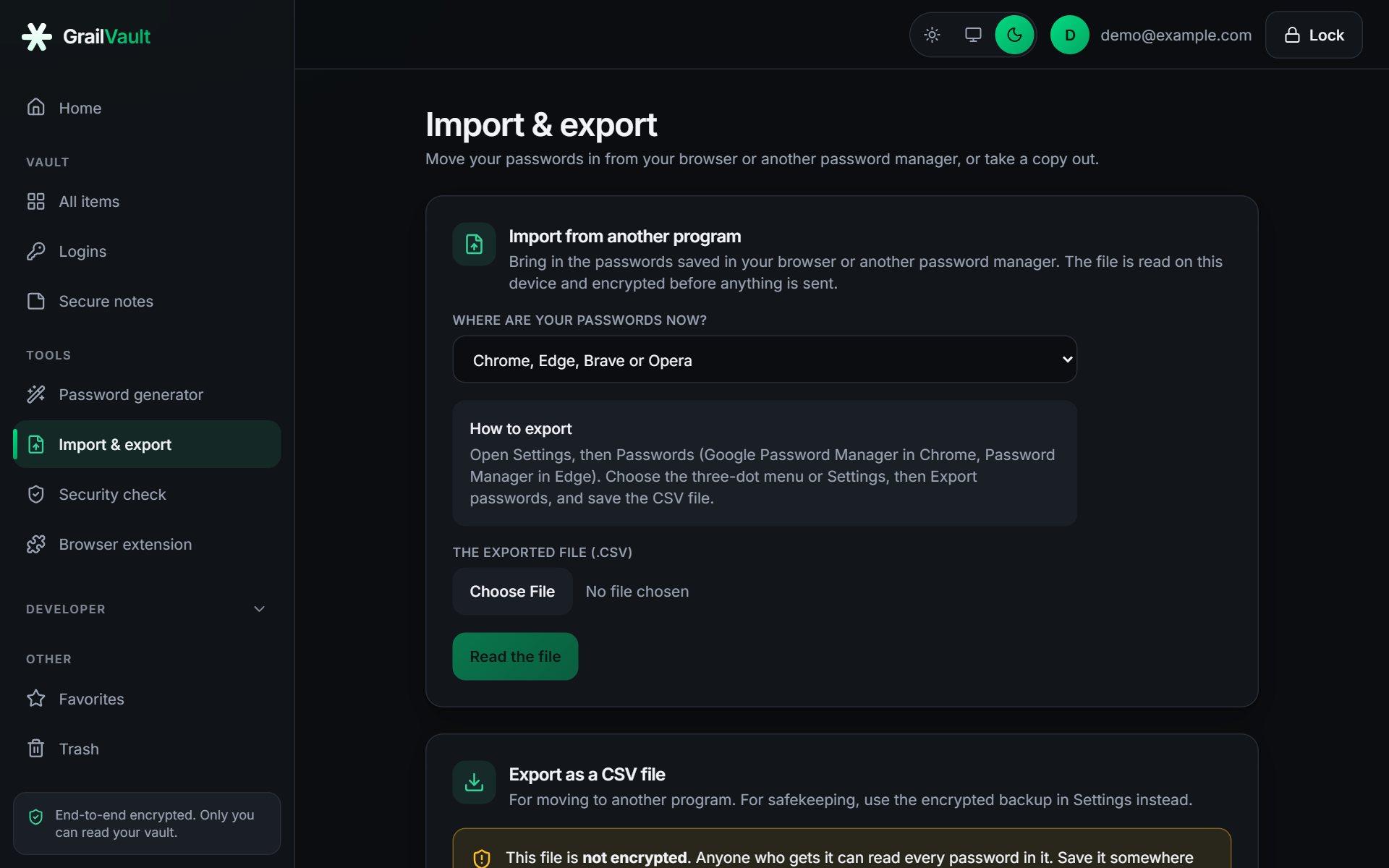
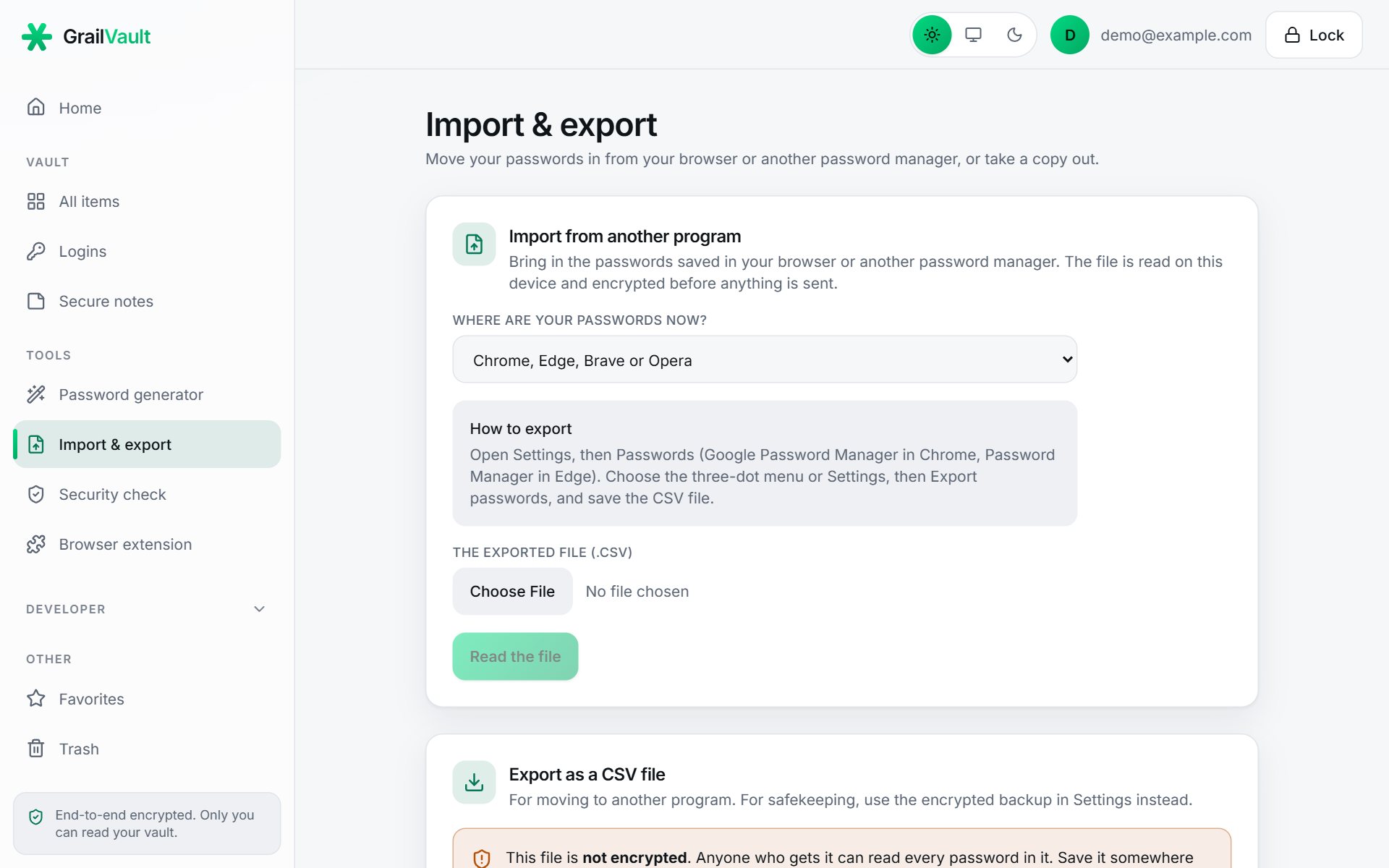
#Import
- Open Import & export in the menu (or Import your passwords on the dashboard).
- Choose where your passwords are now. The page shows how to export from that program.
- Choose the exported
.csvfile and select Read the file. - Check the preview, then choose Import.
#Where to export from
| From | How |
|---|---|
| Chrome, Edge, Brave, Opera | Settings, Passwords (Google Password Manager in Chrome, Password Manager in Edge). Open the menu or Settings and choose Export passwords. |
| Firefox | Menu, Passwords. Open the three-dot menu and choose Export Logins. |
| Safari or the Apple Passwords app | In Passwords (or Safari Settings, Passwords) choose File, Export All Passwords. |
| Bitwarden | Tools, Export vault, format .csv. |
| 1Password | File, Export, CSV (1Password for Windows or Mac). |
| LastPass | Account options, Advanced, Export. |
| Another program | Export a CSV file with a header row containing columns such as name, url, username and password, and choose "Another program". |
#A file from any other program
If your program is not in the list, a CSV file works when its first row names the columns. This is the smallest file GrailVault understands:
name,url,username,password,note
Example,https://example.com,me@example.com,a-long-random-password,
Extra columns are ignored. Rows with neither a username nor a password are skipped.
#What the preview tells you
Nothing is saved until you choose Import. The preview shows:
- how many items are new,
- how many are skipped because the same login (same site, username and password) is already in your vault or repeated in the file, and
- how many rows were not imported and why (for example, a row with no username or password, or a card or identity from another program, which GrailVault does not store).
Logins become Login items. Notes from LastPass, Bitwarden and 1Password become Secure Notes. Folders and tags become tags, and favourites stay favourites.
You can run the same import again safely: items already in your vault are skipped, so nothing is duplicated.
#After importing
Warning
The file you exported contains all of those passwords as plain text. Delete it as soon as the import has finished, and empty your recycle bin or trash. Then remove the saved passwords from your browser, or turn its password saving off, so you keep only one copy.
#Export a CSV copy
The same page lets you download your logins as a CSV file, for moving to another program. Tick I understand the file will contain my passwords in plain text, then choose Download CSV. The file uses the columns browsers use, so you can import it elsewhere. Other item types put their first secret in the password column and their other fields in the note column, so nothing is lost.
Note
For safekeeping, use the encrypted backup instead. A CSV file is not encrypted.
#Limits
- Up to 20,000 rows and 10 MB per file.
- Only CSV files are read. If your program exports another format, choose CSV in its export options.
- Cards, bank details and identities are not imported.