

Getting started
Add your first login
Save a website login by hand and learn how the vault shows and hides it.
A login is a website, a username and a password. This page shows how to add one by hand. (The browser extension can also save logins for you as you sign in.)
#Add it
Choose New item (top right of the vault) or Add one login on the dashboard.
Choose Login. Choose Secure Note instead for private text such as recovery codes.
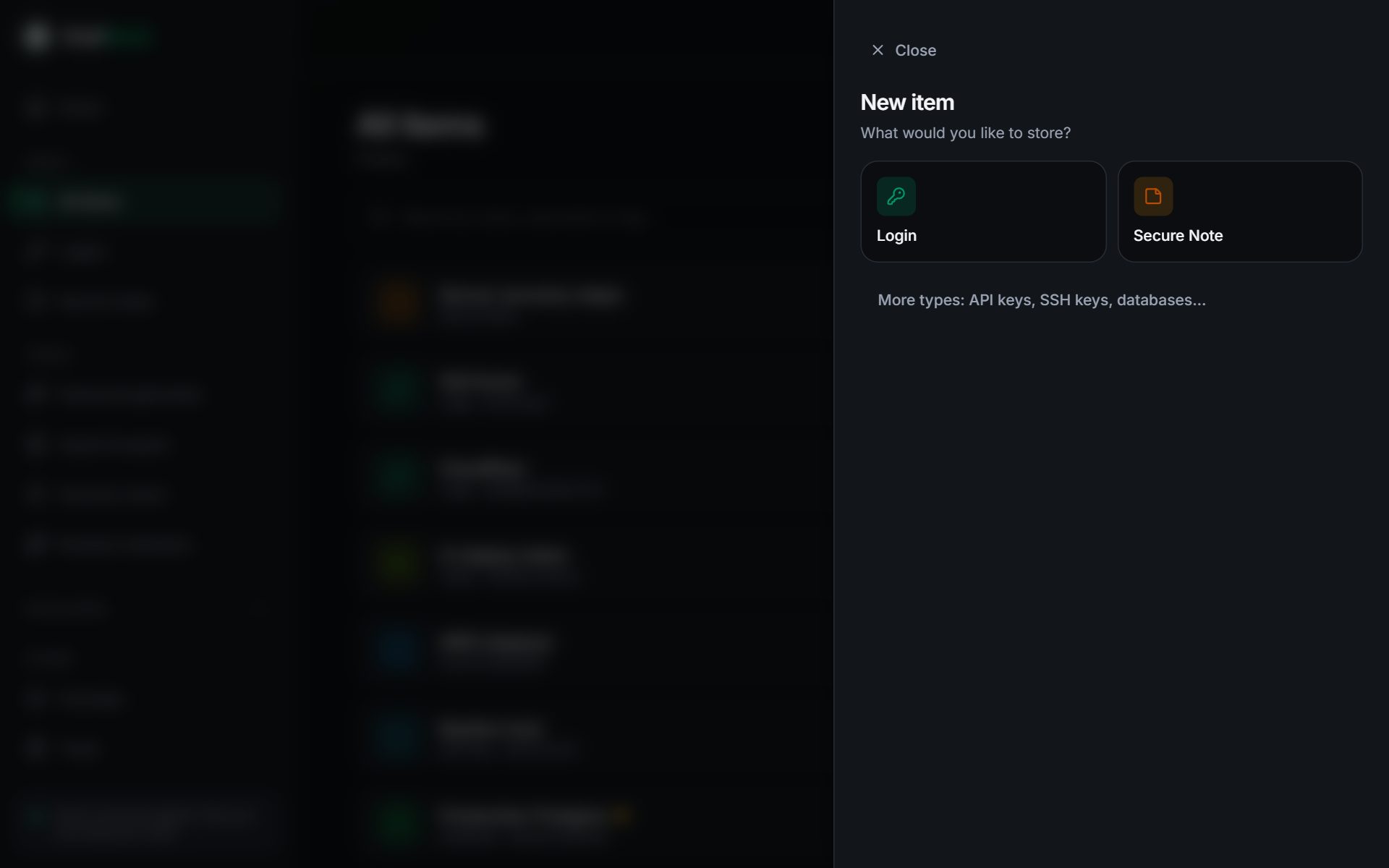
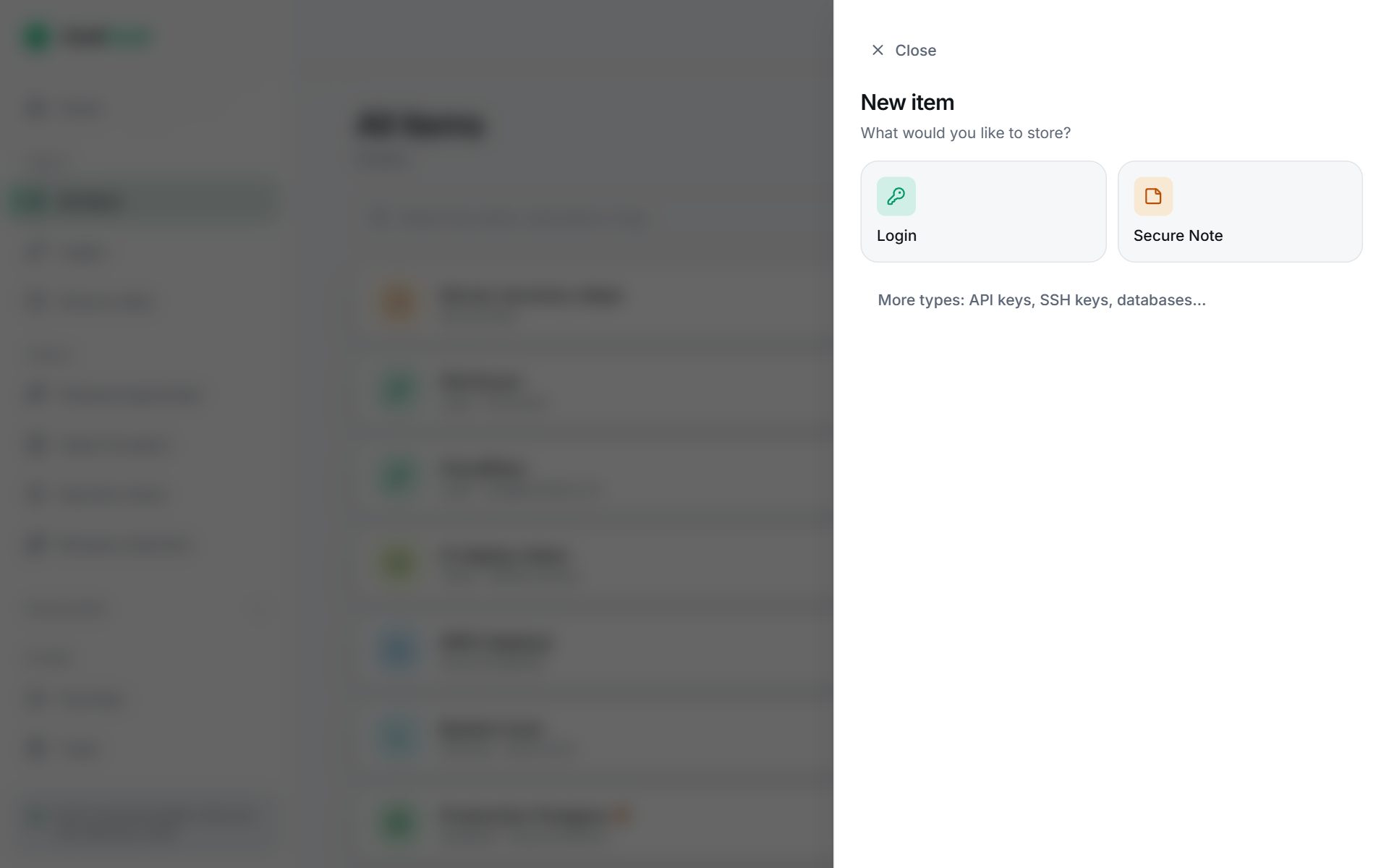
Choosing what to store Fill in the form. Only Name is required.
For the password, choose Generate password to create a strong one, then Use this password.
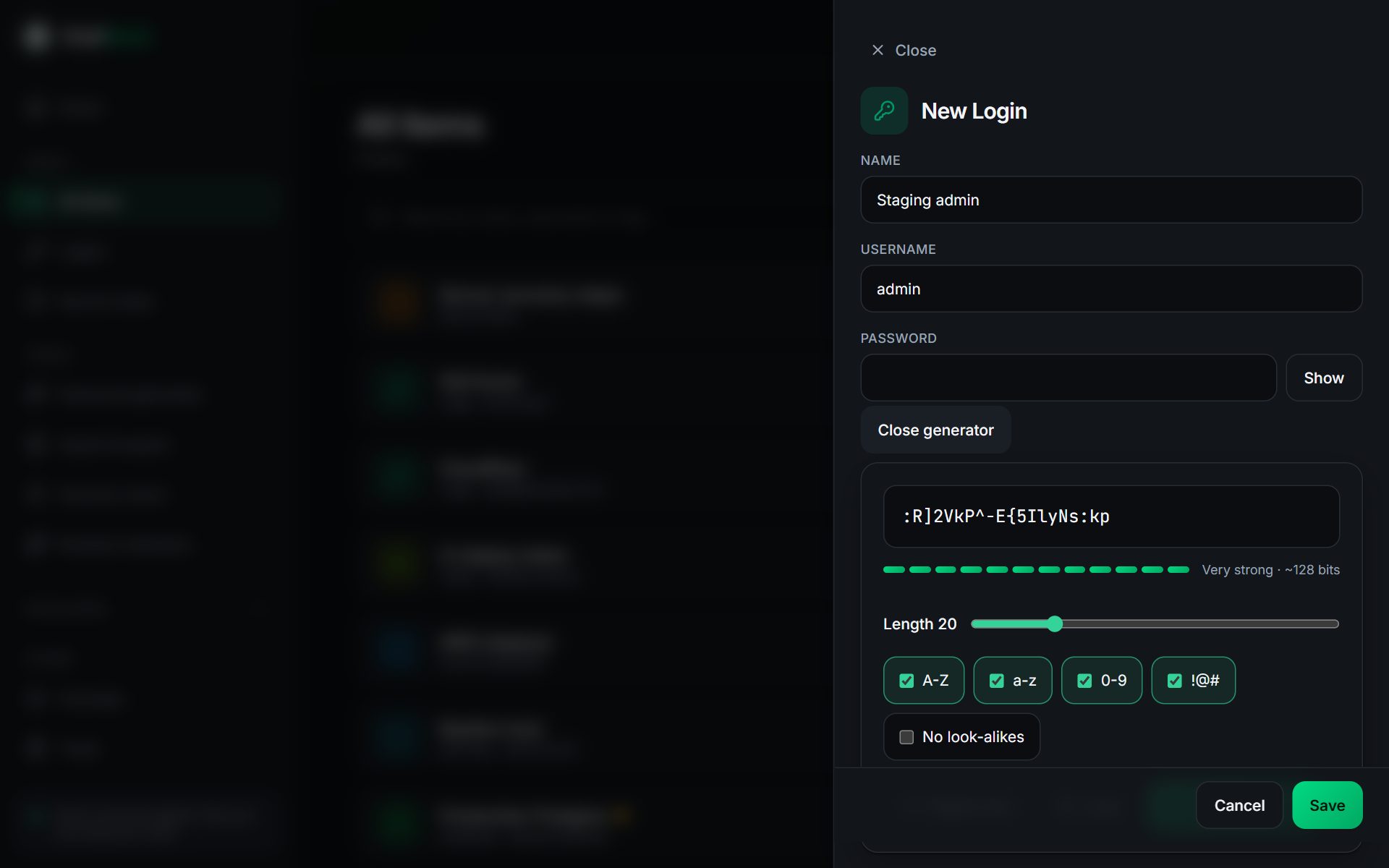
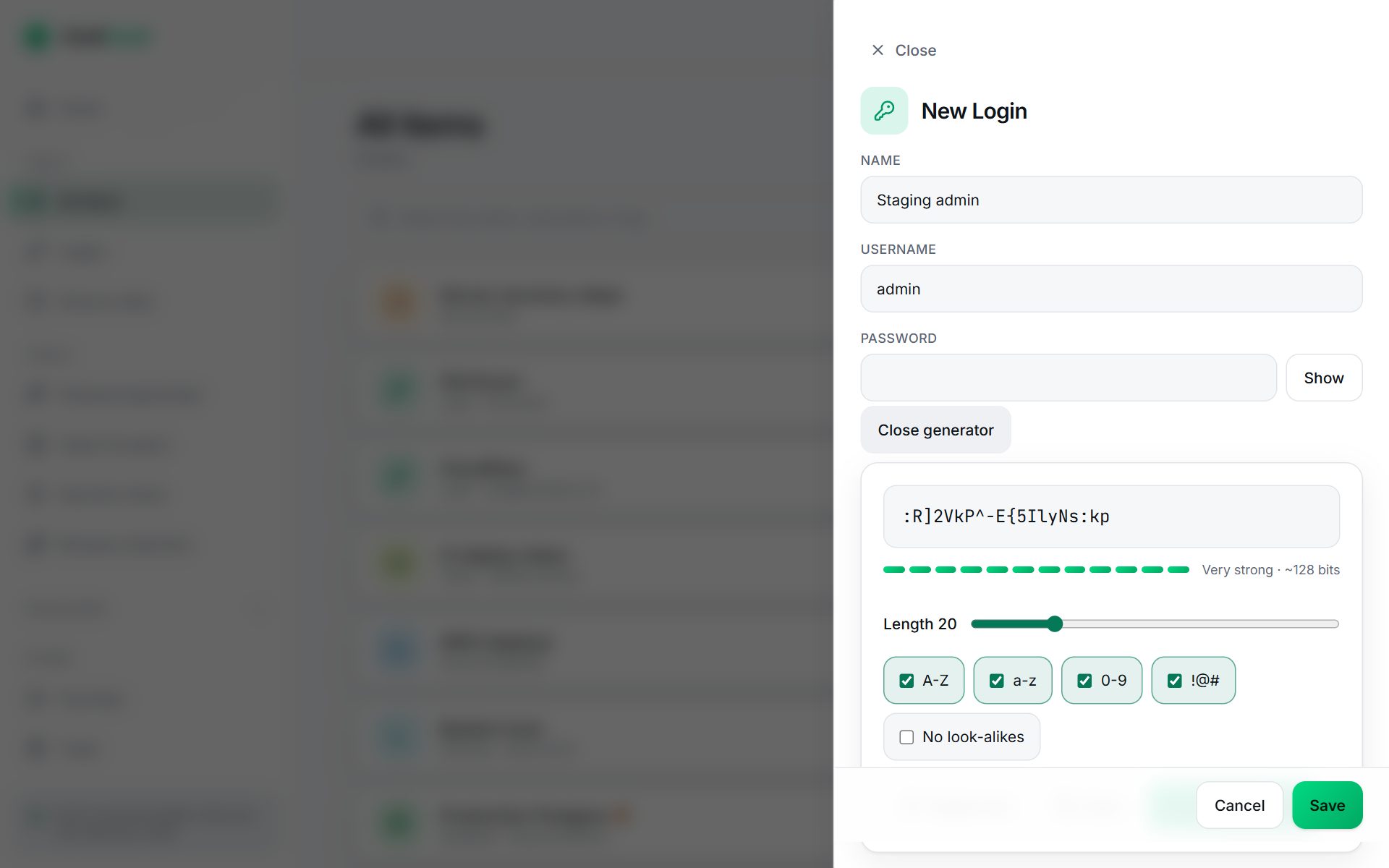
The new item form with the password generator open Choose Save.
Developer item types such as API keys, SSH keys and databases are under More types. See Item types.
#Open it again
Select any item in the list to open its details on the right.
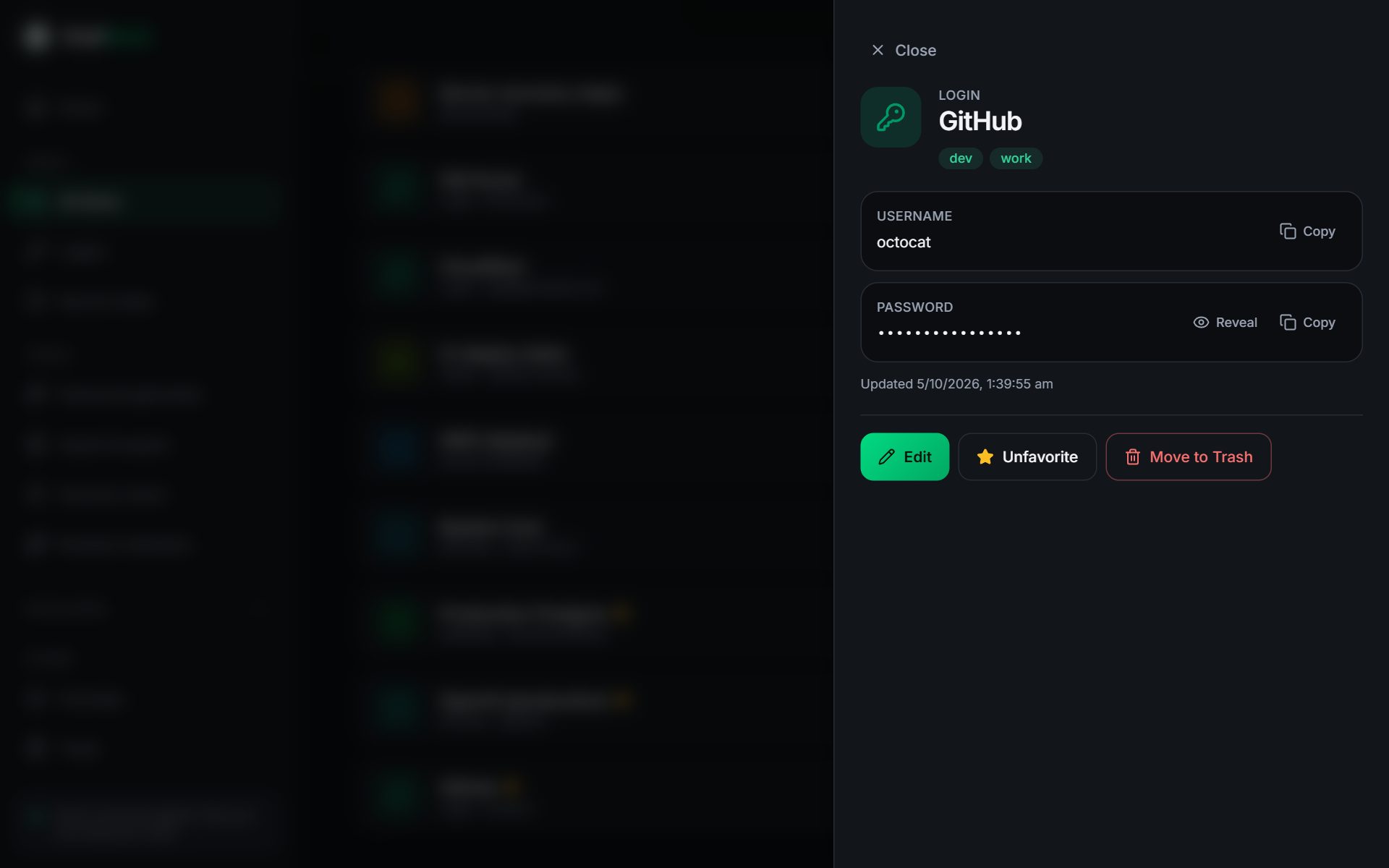
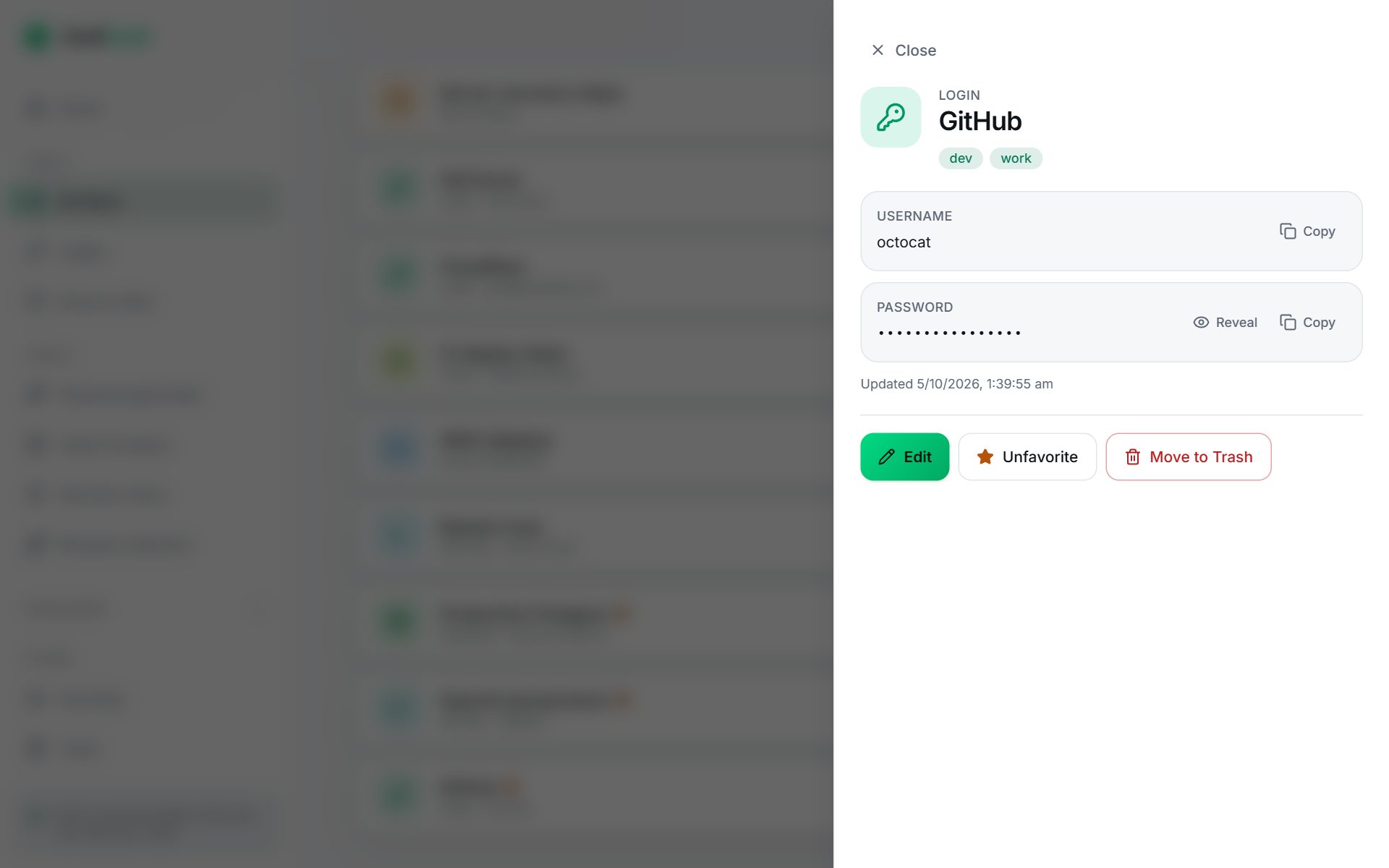
- Secrets are hidden by default. Choose Reveal to show one; it hides itself again after 15 seconds.
- Copy puts the value on your clipboard and clears it again after 30 seconds. See Copy, reveal and locking.
- Edit changes anything, Favorite adds it to your Favorites list, and Move to Trash removes it (you can restore it later).
#What gets encrypted
All of it. The name, username, website, tags and notes are encrypted along with the password, in your browser, before saving. The server cannot see what any item is called.
#Next steps
- Import passwords from your browser or another password manager.
- Item types: what each type stores.
- Search, tags, favorites and trash.
- Back up your vault once you have a few items.